<?xml version="1.0" encoding="utf-8"?><feed xmlns="http://www.w3.org/2005/Atom" ><generator uri="https://jekyllrb.com/" version="4.2.2">Jekyll</generator><link href="https://inblackandwrite.dev/feed.xml" rel="self" type="application/atom+xml" /><link href="https://inblackandwrite.dev/" rel="alternate" type="text/html" /><updated>2025-11-18T21:40:53-06:00</updated><id>https://inblackandwrite.dev/feed.xml</id><title type="html">inblack&amp;#38;write</title><subtitle>An amazing website.</subtitle><author><name>Daejuan Jacobs</name></author><entry><title type="html">Building a FreeBSD Plex Media Server, Part 2</title><link href="https://inblackandwrite.dev/freebsd/plex/building-a-freebsd-plex-media-server-part-2/" rel="alternate" type="text/html" title="Building a FreeBSD Plex Media Server, Part 2" /><published>2025-11-18T00:00:00-06:00</published><updated>2025-11-18T00:00:00-06:00</updated><id>https://inblackandwrite.dev/freebsd/plex/building-a-freebsd-plex-media-server-part-2</id><content type="html" xml:base="https://inblackandwrite.dev/freebsd/plex/building-a-freebsd-plex-media-server-part-2/"><![CDATA[<h1 id="why-zfs">Why ZFS?</h1>
<p>ZFS alone is enough reason to give BSD distros a try for your server. While Linux has support for ZFS, due to <a href="https://sfconservancy.org/blog/2016/feb/25/zfs-and-linux/">complex licensing issues</a> it’s not included in the kernel. ZFS is open source under Common Development and Distribution License (CDDL) 1.0 whereas Linux kernel is licensed under the GNU General Public License (GPL) 2.0.</p>

<p>This means on Linux you have to rely on <a href="https://linux.die.net/man/8/dkms">Dynamic Kernel Module Support (DKMS)</a>. This works fine, but means ZFS on root for Linux could potentially break after a kernel update if the ZFS DKMS package has some incompatibility issue, or if there is manual intervention required that you happen to miss. Leaving your system unbootable, requiring a safety rescue.</p>

<h3 id="key-benefits-of-freebsd">Key Benefits of FreeBSD</h3>

<p>With that said, FreeBSD defaulting to its built-in ZFS filesystem is a much more straightforward approach, and FreeBSD’s ZFS support is more mature. The kernel and base system are developed and maintained as a unified codebase, unlike Linux, which has components from various distributed sources.</p>

<p>This design means that all components, such as the kernel, core utilities, and system libraries are all versioned and tested together, reducing compatibility issues that can arise from independently updated packages. Upgrades are more predictable and reliable, with fewer dependencies breaking or services failing after a system update.</p>

<p>The benefits of ZFS are hard to ignore:</p>

<h3 id="key-benefits-of-zfs-on-freebsd">Key Benefits of ZFS on FreeBSD</h3>

<ol>
  <li><strong>Data Integrity:</strong> End-to-end checksumming and self-healing protect against data corruption.</li>
  <li><strong>Flexible Storage Pools:</strong> Dynamic allocation with pooled storage rather than fixed partitions.</li>
  <li><strong>Snapshots and Clones:</strong> Fast, space-efficient snapshots and writable clones for testing and backup. Robust CLI for managing pools, datasets, and replication with <code class="language-plaintext highlighter-rouge">zfs send/receive</code>.</li>
  <li><strong>Performance Optimization:</strong> Features like ARC caching, ZIL, and intelligent I/O improve speed.</li>
  <li><strong>Integrated RAID:</strong> Native support for mirror and RAID-Z configurations without external tools.</li>
  <li><strong>FreeBSD Integration:</strong> Full support for booting from ZFS, jails, and system utilities.</li>
  <li><strong>Compression and Deduplication:</strong> Transparent data compression and optional deduplication.</li>
  <li><strong>Copy-on-Write:</strong> Ensures consistent data at all times, simplifying snapshots and rollback.</li>
</ol>

<p>After installing FreeBSD on my server, the first task was to organize storage using ZFS, taking advantage of its powerful features like snapshots, self-healing, and flexible datasets.</p>

<p>To begin, I needed to identify the available disks on the system. FreeBSD provides the geom command for this purpose:</p>

<div class="language-bash highlighter-rouge"><div class="highlight"><pre class="highlight"><code><span class="nv">$~</span> geom disk list

Geom name: ada0
Providers:
1. Name: ada0
   Mediasize: 1000204886016 <span class="o">(</span>931G<span class="o">)</span>
   Sectorsize: 512
   Stripesize: 4096
   Stripeoffset: 0
   Mode: r1w1e1
   descr: ST1000DM010-2EP102
   ident: Z4A123CD
   rotationrate: 7200
   fwsectors: 63
   fwheads: 16

Geom name: ada1
Providers:
1. Name: ada1
   Mediasize: 1000204886016 <span class="o">(</span>931G<span class="o">)</span>
   Sectorsize: 512
   Stripesize: 4096
   Stripeoffset: 0
   Mode: r1w1e1
   descr: ST1000DM010-2EP102
   ident: Z4A456EF
   rotationrate: 7200
   fwsectors: 63
   fwheads: 16
   
...etc
</code></pre></div></div>

<p>With the disk layout confirmed, I proceeded to create separate ZFS pools optimized for different workloads.</p>

<h2 id="setting-up-a-zfs-pool-for-plex">Setting Up a ZFS Pool for Plex</h2>

<p>For Plex media storage, I created a ZFS pool named <code class="language-plaintext highlighter-rouge">zplex</code> using two mirrored vdevs. This provides redundancy in case of disk failure, essential for protecting a large media library.</p>

<div class="language-bash highlighter-rouge"><div class="highlight"><pre class="highlight"><code>zpool create zplex mirror ada0 ada1 mirror ada2 ada3
</code></pre></div></div>

<p>creates a new ZFS storage pool named <strong><code class="language-plaintext highlighter-rouge">zplex</code></strong> using <strong>four disks</strong> arranged as <strong>two mirrored vdevs</strong>.</p>

<h3 id="breaking-it-down">Breaking it down</h3>

<ul>
  <li>
    <p><strong><code class="language-plaintext highlighter-rouge">zpool create zplex</code></strong>
Creates a new pool named <strong>zplex</strong>.</p>
  </li>
  <li>
    <p><strong><code class="language-plaintext highlighter-rouge">mirror ada0 ada1</code></strong>
The first vdev is a <strong>mirror</strong> made from the disks <strong>ada0</strong> and <strong>ada1</strong>.
This means the data is duplicated across both drives for redundancy.</p>
  </li>
  <li>
    <p><strong><code class="language-plaintext highlighter-rouge">mirror ada2 ada3</code></strong>
The second vdev is another <strong>mirror</strong>, using the disks <strong>ada2</strong> and <strong>ada3</strong>.</p>
  </li>
</ul>

<h3 id="what-you-end-up-with">What you end up with</h3>

<p>You’re effectively building a pool made of <strong>four disks</strong>, grouped like this:</p>

<ul>
  <li><strong>Mirror 1:</strong> ada0 + ada1</li>
  <li><strong>Mirror 2:</strong> ada2 + ada3</li>
</ul>

<p>ZFS then stripes data <strong>across the two mirrors</strong>, giving you:</p>

<ul>
  <li><strong>Redundancy:</strong> You can lose <em>one disk per mirror</em> (up to <strong>two total</strong>) as long as they’re not in the same mirror.</li>
  <li><strong>Performance:</strong> Read and write performance benefits from striping across both mirror vdevs.</li>
</ul>

<p>This arrangement is commonly called a <strong>“RAID10-style” ZFS layout</strong>: mirrors for redundancy, striped for performance.</p>

<h2 id="setting-up-a-zfs-datasets-for-plex">Setting Up a ZFS Datasets for Plex</h2>

<p>Next, I created ZFS datasets for Plex and assigned them custom mount points to logically separate media content:</p>

<p>These ZFS commands create a set of datasets inside your <code class="language-plaintext highlighter-rouge">zplex</code> pool, each with its own mountpoint so they appear as separate directories on your filesystem.</p>

<h3 id="command-breakdown">Command breakdown</h3>

<h4 id="1-parent-dataset">1. Parent Dataset</h4>

<div class="language-bash highlighter-rouge"><div class="highlight"><pre class="highlight"><code>zfs create <span class="nt">-o</span> <span class="nv">mountpoint</span><span class="o">=</span>/plex zplex/plex
</code></pre></div></div>

<p>This creates a ZFS dataset named <strong><code class="language-plaintext highlighter-rouge">zplex/plex</code></strong> and sets its <strong>mountpoint</strong> to <strong><code class="language-plaintext highlighter-rouge">/plex</code></strong>.
Once created, the directory <code class="language-plaintext highlighter-rouge">/plex</code> becomes backed by this dataset.</p>

<hr />

<h4 id="2-first-child-dataset">2. First Child Dataset</h4>

<div class="language-bash highlighter-rouge"><div class="highlight"><pre class="highlight"><code>zfs create <span class="nt">-o</span> <span class="nv">mountpoint</span><span class="o">=</span>/plex/movies zplex/plex/movies
</code></pre></div></div>

<p>This creates a <strong>child dataset</strong> named <strong><code class="language-plaintext highlighter-rouge">zplex/plex/movies</code></strong>, mounted at <code class="language-plaintext highlighter-rouge">/plex/movies</code>.
Using a separate dataset gives you independent control of snapshots, quotas, compression, and permissions for your <em>movies</em> library.</p>

<hr />

<h4 id="3-second-child-dataset">3. Second Child Dataset</h4>

<div class="language-bash highlighter-rouge"><div class="highlight"><pre class="highlight"><code>zfs create <span class="nt">-o</span> <span class="nv">mountpoint</span><span class="o">=</span>/plex/tv zplex/plex/tv
</code></pre></div></div>

<p>This creates another child dataset, <strong><code class="language-plaintext highlighter-rouge">zplex/plex/tv</code></strong>, mounted at <code class="language-plaintext highlighter-rouge">/plex/tv</code>.</p>

<hr />

<h3 id="why-make-separate-datasets">Why make separate datasets?</h3>

<p>By splitting <strong>movies</strong> and <strong>tv</strong> into their own datasets:</p>

<ul>
  <li>Each can have its <strong>own snapshot schedule</strong></li>
  <li>You can apply different <strong>quotas</strong> or <strong>compression</strong> settings</li>
  <li>Permissions can be delegated more cleanly</li>
  <li>Plex libraries stay neatly organized at the filesystem level</li>
  <li>ZFS manages each dataset independently</li>
</ul>

<p>This structure not only helps with organization but also allows for dataset-specific settings like compression or quotas in the future.</p>

<h2 id="preparing-encrypted-storage-for-jails">Preparing Encrypted Storage for Jails</h2>

<p>To host applications in FreeBSD jails, such as Git and Nextcloud, I created a separate ZFS pool named <code class="language-plaintext highlighter-rouge">zstor</code> using a mirrored configuration for redundancy:</p>

<div class="language-bash highlighter-rouge"><div class="highlight"><pre class="highlight"><code>zpool create zstor mirror ada4 ada5
</code></pre></div></div>

<p>For sensitive data, encryption is a must. ZFS’s native encryption makes this straightforward. I created encrypted and compressed datasets for Git and Nextcloud:</p>

<hr />

<p>These commands create encrypted ZFS datasets for storing application data, each with its own mountpoint and compression enabled.</p>

<h3 id="command-breakdown-1">Command breakdown</h3>

<p>Both commands follow the same pattern:</p>

<ul>
  <li><strong><code class="language-plaintext highlighter-rouge">zfs create</code></strong> – creates a new dataset.</li>
  <li><strong><code class="language-plaintext highlighter-rouge">-o encryption=on</code></strong> – enables native ZFS encryption for the dataset.</li>
  <li><strong><code class="language-plaintext highlighter-rouge">-o keyformat=passphrase</code></strong> – specifies that the encryption key will be a <strong>human-entered passphrase</strong> rather than a raw key file.</li>
  <li><strong><code class="language-plaintext highlighter-rouge">-o keylocation=prompt</code></strong> – ZFS should <strong>ask you for the passphrase</strong> whenever the dataset is unlocked.</li>
  <li><strong><code class="language-plaintext highlighter-rouge">-o compress=lz4</code></strong> – turns on <strong>lz4 compression</strong>, giving good performance with automatic space savings.</li>
  <li><strong><code class="language-plaintext highlighter-rouge">-o mountpoint=…</code></strong> – sets the directory where the dataset will be mounted.</li>
</ul>

<hr />

<h3 id="1-git-dataset">1. Git dataset</h3>

<div class="language-bash highlighter-rouge"><div class="highlight"><pre class="highlight"><code>zfs create <span class="nt">-o</span> <span class="nv">encryption</span><span class="o">=</span>on <span class="nt">-o</span> <span class="nv">keyformat</span><span class="o">=</span>passphrase <span class="nt">-o</span> <span class="nv">keylocation</span><span class="o">=</span>prompt <span class="se">\</span>
           <span class="nt">-o</span> <span class="nv">compress</span><span class="o">=</span>lz4 <span class="nt">-o</span> <span class="nv">mountpoint</span><span class="o">=</span>/git zstor/git
</code></pre></div></div>

<p>This creates an encrypted dataset named <strong><code class="language-plaintext highlighter-rouge">zstor/git</code></strong>, mounted at <strong><code class="language-plaintext highlighter-rouge">/git</code></strong>.
It’s ideal for storing private Git repositories or anything that requires an encrypted filesystem.</p>

<hr />

<h3 id="2-nextcloud-dataset">2. Nextcloud dataset</h3>

<div class="language-bash highlighter-rouge"><div class="highlight"><pre class="highlight"><code>zfs create <span class="nt">-o</span> <span class="nv">encryption</span><span class="o">=</span>on <span class="nt">-o</span> <span class="nv">keyformat</span><span class="o">=</span>passphrase <span class="nt">-o</span> <span class="nv">keylocation</span><span class="o">=</span>prompt <span class="se">\</span>
           <span class="nt">-o</span> <span class="nv">compress</span><span class="o">=</span>lz4 <span class="nt">-o</span> <span class="nv">mountpoint</span><span class="o">=</span>/nextcloud zstor/nextcloud
</code></pre></div></div>

<p>This creates a second encrypted dataset, <strong><code class="language-plaintext highlighter-rouge">zstor/nextcloud</code></strong>, mounted at <strong><code class="language-plaintext highlighter-rouge">/nextcloud</code></strong>, suitable for storing synced files, user data, and application content for a Nextcloud instance.</p>

<hr />

<h3 id="why-encrypted-datasets">Why encrypted datasets?</h3>

<p>Using encrypted datasets for Git and Nextcloud gives you:</p>

<ul>
  <li><strong>At-rest encryption</strong> handled natively by ZFS</li>
  <li>Clean separation between datasets</li>
  <li>Independent passphrases or unlock procedures</li>
  <li>Automatic compression to save space</li>
  <li>Flexibility to snapshot, clone, and replicate each dataset separately</li>
</ul>

<hr />

<p>With this layout, each jail has its own secure dataset, giving me fine-grained control, flexibility, and peace of mind—all integrated into FreeBSD’s native toolset.</p>

<h2 id="drive-replacement">Drive replacement</h2>

<p>What good is a RAID setup if you can’t easily replace and recover from failed disks?</p>

<p>Not long after setting up my ZFS pool, I encountered a disk failure in the zplex pool. Fortunately, ZFS makes identifying and replacing failed drives straightforward. The first indication of a problem came from checking the pool’s health:</p>

<div class="language-bash highlighter-rouge"><div class="highlight"><pre class="highlight"><code>zpool status zplex
</code></pre></div></div>

<p>This command reports the status of each vdev and displays any errors or degraded conditions. In my case, one of the disks showed a status like:</p>
<div class="language-bash highlighter-rouge"><div class="highlight"><pre class="highlight"><code>NAME                        STATE     READ WRITE CKSUM
zplex                       DEGRADED     0     0     0
  mirror-0                  ONLINE       0     0     0
    ada0                    ONLINE       0     0     0
    ada1                    ONLINE       0     0     0
  mirror-1                  DEGRADED     0     0     0
    ada2                    ONLINE       0     0     0
    13095480495471608692    FAULTED      0     0     0
</code></pre></div></div>

<p>The long numeric value (<code class="language-plaintext highlighter-rouge">13095480495471608692</code>) identifies the failed disk. To find its physical device name prior to replacement, I used the following command:</p>

<div class="language-bash highlighter-rouge"><div class="highlight"><pre class="highlight"><code>geom disk list
</code></pre></div></div>

<p>Once the replacement disk was installed and recognized by the system (in this case as <code class="language-plaintext highlighter-rouge">/dev/ada3</code>), I instructed ZFS to begin the replacement:</p>
<div class="language-bash highlighter-rouge"><div class="highlight"><pre class="highlight"><code>zpool replace zplex 13095480495471608692 /dev/ada3
</code></pre></div></div>

<p>ZFS immediately began resilvering—rebuilding data on the new disk based on the surviving mirror. You can monitor the progress:</p>

<div class="language-bash highlighter-rouge"><div class="highlight"><pre class="highlight"><code>zpool status zplex
</code></pre></div></div>

<p>Example:</p>

<div class="language-bash highlighter-rouge"><div class="highlight"><pre class="highlight"><code>  pool: zplex
 state: ONLINE
  scan: resilver <span class="k">in </span>progress since Tue Nov 19 10:42:03 2025
        150G scanned at 1.25G/s, 82G issued at 680M/s, 500G total
        82G resilvered, 16.4% <span class="k">done</span>, 0h58m to go
config:

        NAME                       STATE     READ WRITE CKSUM
        zplex                      ONLINE       0     0     0
          mirror-0                 ONLINE       0     0     0
            ada0                   ONLINE       0     0     0
            ada1                   ONLINE       0     0     0
          mirror-1                 ONLINE       0     0     0
            ada2                   ONLINE       0     0     0
            replacing-2            ONLINE       0     0     0
              13095480495471608692 ONLINE       0     0     0  <span class="o">(</span>old<span class="o">)</span>
              ada3                 ONLINE       0     0     0  <span class="o">(</span>resilvering<span class="o">)</span>

errors: No known data errors
</code></pre></div></div>

<p>With minimal intervention and no downtime for media playback, the pool was back to a healthy state. This experience reinforced one of the strengths of ZFS: robust handling of hardware failures with clear diagnostics and built-in resiliency.</p>

<h1 id="conclusion">Conclusion</h1>

<p>Building a solid storage foundation is the most critical step in creating a reliable homelab server, and this article demonstrates why FreeBSD with ZFS is an exceptional choice for the task. We’ve walked through the practical steps of creating distinct ZFS pools for different needs: a resilient, RAID10-style pool for our large Plex media library, and a separate, encrypted pool to securely house sensitive application data.</p>

<p>By leveraging ZFS datasets, we’ve not only organized our file systems logically for movies and TV shows but also enabled fine-grained control for future management. The real-world scenario of a disk failure underscored the power of ZFS, showcasing how easily a faulty drive can be identified, replaced, and resilvered without any data loss or significant downtime.</p>

<p>With a robust, self-healing, and secure storage backend now in place, our FreeBSD server is fully prepared for the next stage: deploying Plex and other services within isolated Jails. The initial setup proves that with ZFS, you get more than just storage, you get a professional-grade data management system that provides performance, flexibility, and peace of mind.</p>]]></content><author><name>Daejuan Jacobs</name></author><category term="freebsd" /><category term="plex" /><category term="freebsd" /><category term="plex" /><category term="hardware" /><category term="jails" /><category term="homelab" /><summary type="html"><![CDATA[FreeBSD homelab server, running Jails for Nextcloud, Plex, Gogs, and more.]]></summary></entry><entry><title type="html">Notes from Kubecon London 2025</title><link href="https://inblackandwrite.dev/k8s/cncf/kubecon-london/" rel="alternate" type="text/html" title="Notes from Kubecon London 2025" /><published>2025-04-22T00:00:00-05:00</published><updated>2025-04-22T00:00:00-05:00</updated><id>https://inblackandwrite.dev/k8s/cncf/kubecon-london</id><content type="html" xml:base="https://inblackandwrite.dev/k8s/cncf/kubecon-london/"><![CDATA[<h1 id="kubecon">Kubecon</h1>
<h2 id="what-is-it">What is it?</h2>
<p>Kubernetes Convention is the premier expo for everything k8s, that is put on several times per year by the <a href="https://www.cncf.io/">Cloud native Computing Foundation</a></p>

<h2 id="my-time-there">My time there</h2>
<p>I went to Kubecon Europe in London this year and had a blast absorbing all of the content. It’s easy to live in a bubble within your day job and miss out on some of the cool developments in technology.</p>

<p>I would definitely recommend Kubecon to anyone that works with Kubernetes. Not only do you get awesome talks and panels, but you can browse the showroom floor for k8s related projects and services.</p>

<p>Below I’ll link to some cool talks and their slideshows, but before that I’ll hit a few key points that I thought were most interesting.</p>

<h2 id="cool-notes">Cool Notes</h2>

<ul>
  <li>The paradigm for k8s clusters is to favor multiple smaller clusters versus fewer larger clusters. Tools like <a href="https://cluster-api.sigs.k8s.io/introduction">Cluster API</a> make it easy to manage numerous clusters. Small clusters are easier to upgrade as there is less chances for upgrades to have detrimental effects on running applications.</li>
  <li>Companies are utilizing components of k8s to do cool stuff
    <ul>
      <li><a href="https://metal3.io/">Metal3</a> and <a href="https://learn.kubenet.dev/">kubenet</a> to provision physical hardware and devices
        <ul>
          <li>Use the reconciliation and scheduling components of k8s to configure and deploy hardware</li>
        </ul>
      </li>
      <li>Edge devices with <a href="https://kops.sigs.k8s.io/">kops</a> to test algae in the ocean</li>
    </ul>
  </li>
  <li><a href="https://kubernetes.io/docs/concepts/extend-kubernetes/api-extension/apiserver-aggregation/">Kubernetes API Aggregation Layer</a> can be used as an alternative/supplement to CRDs when you need to bypass the limitations of ETCD and utilize another database.
    <ul>
      <li><a href="https://sched.co/1txCn">Kueue</a> bypassed k8s object size limitation in ETCD and instead stores objects in Redis</li>
    </ul>
  </li>
  <li>eBPF is the future, made easy by <a href="https://eunomia.dev/en/">bpftime</a></li>
  <li>LLM/AI workflows work well in a k8s native environment
    <ul>
      <li>Kubeflow</li>
      <li><a href="https://www.ray.io/">Ray</a></li>
    </ul>
  </li>
</ul>

<h2 id="takeaways">Takeaways</h2>
<p>Below is a some quick points I gathered from most of the talks.</p>

<ul>
  <li>
    <h1 id="general">General</h1>
    <ul>
      <li>
        <h2 id="cots-vs-build">COTS vs Build</h2>
      </li>
      <li>Commercial-off-the-shelf (COTS) comes up a lot in talks when it comes to DevOps and SRE teams.
        <ul>
          <li>Small organizations can get away with COTS since their limited footprint makes it easier to migrate to a home grown solution</li>
        </ul>
      </li>
      <li>
        <h3 id="cots">COTS</h3>
        <ul>
          <li>In some cases, allows you to quickly get started. Provides mostly complete turnkey solution</li>
          <li><strong>Avoid COTS where possible, some solutions lack OSS solutions (Finance, HR, etc)</strong></li>
          <li>COTS creates vendor and data lock, perpetual costs</li>
          <li>Still requires development</li>
        </ul>
      </li>
      <li>
        <h3 id="build">Build</h3>
        <ul>
          <li>Requires investment in hiring talent</li>
          <li>Allows the most flexibility and control</li>
        </ul>
      </li>
    </ul>
  </li>
  <li>
    <h1 id="ai-agents">AI Agents</h1>
    <ul>
      <li>Incorporating AI for Operations is harder than regular operations</li>
      <li>
        <h2 id="potential-use-cases">Potential use cases</h2>
        <ul>
          <li>Code review
            <ul>
              <li>On Git pushes can check for common mistakes</li>
            </ul>
          </li>
          <li>Run unit tests</li>
          <li>IaC integration
            <ul>
              <li>Can determine which use 3rd party tools to test deploy infra and verify changes</li>
            </ul>
          </li>
          <li>Create PR’s, write documentation on changes</li>
        </ul>
      </li>
      <li>
        <h2 id="challenges">Challenges</h2>
        <ul>
          <li>LLMs are notoriosly unpredictable</li>
          <li>While deploying, difficult to monitor
            <ul>
              <li>Monitoring which prompts provided bad output, determining which workflow</li>
            </ul>
          </li>
        </ul>
      </li>
      <li>
        <h2 id="solutions">Solutions</h2>
      </li>
      <li>LLM Guardrails
        <ul>
          <li><a href="https://kccnceu2025.sched.com/event/1uJ0g/cloud-native-kubernetes-ai-day-hosted-by-cncf-full-day-event-all-access-pass-required?iframe=no">Slideshow</a></li>
          <li><a href="https://youtu.be/Fo56gmeTvHU?si=gBtOSkTV3cTzpXgD">YouTube Talk</a></li>
        </ul>
      </li>
    </ul>
  </li>
</ul>]]></content><author><name>Daejuan Jacobs</name></author><category term="k8s" /><category term="cncf" /><category term="k8s" /><category term="linux" /><category term="ebpf" /><category term="llm" /><summary type="html"><![CDATA[Interesting talks and fingings from Kubecon London this year]]></summary></entry><entry><title type="html">Ansible Playbooks for Setting up FreeIPA</title><link href="https://inblackandwrite.dev/ansible/ansible-freeipa-easysetup/" rel="alternate" type="text/html" title="Ansible Playbooks for Setting up FreeIPA" /><published>2025-01-25T00:00:00-06:00</published><updated>2025-01-25T00:00:00-06:00</updated><id>https://inblackandwrite.dev/ansible/ansible-freeipa-easysetup</id><content type="html" xml:base="https://inblackandwrite.dev/ansible/ansible-freeipa-easysetup/"><![CDATA[<p>The code for this project is located on my Github: <a href="https://gitlab.com/inblackandwrite/ansible-freeipa-easysetup">ansible-freeipa-easysetup</a></p>
<h1 id="background">Background</h1>
<p>Setting up FreeIPA can be tedious and a chore. There are official FreeIPA Ansible Roles that you can leverage, and I decided to base a project around them to get you up and running with a baseline configuration that only requires editing a few configuration variables.</p>

<p><a href="https://www.freeipa.org/">FreeIPA</a> (Identity, Policy, and Audit) is an open-source identity management solution designed for Linux and Unix systems. It provides centralized authentication, access control, and auditing capabilities, making it easier to manage user identities, roles, and permissions across a network of systems. FreeIPA combines several technologies, such as LDAP (Lightweight Directory Access Protocol), Kerberos, DNS, and a certificate authority, to create an integrated identity and security management platform.</p>

<p>FreeIPA is an open-source alternative to Microsoft’s Active Directory that’s tailored specifically for Linux and Unix environments. It simplifies the management of users, groups, hosts, and access policies through a unified web interface, command-line tools, and robust APIs.</p>

<h1 id="usecase">Usecase</h1>
<p>Currently, my main use case is providing centralized ssh access to a slew of servers I may deploy and destroy for development, or some that I may have up in production.</p>

<ul>
  <li>Avoid creating local admin users on every server</li>
  <li>Create service accounts for automation to use across servers with RBAC or HBAC</li>
  <li>Manager user groups</li>
  <li>Passwordless ssh authentication</li>
  <li>Support SSO sign-in for applications that support it</li>
  <li>Create Certificate authority to self-sign TLS certificates and distribute them</li>
  <li>Run your own DNS server to add private local domains</li>
</ul>

<p>If you’re on-prem, you can run FreeIPA in a VM, same as if you’re in the cloud or hybrid environment.</p>

<h1 id="notes">Notes</h1>
<p>FreeIPA has a robust web UI and <a href="https://freeipa.readthedocs.io/en/latest/api/basic_usage.html">API</a>. Ideally, you’d want to restrict management access of FreeIPA to a private network. For example, on-prem FreeIPA can run in a VM with only a local private IP address. Clients on the same network can join the domain with no special configuration. For hybrid environments, you can use a VPN so that clients in the cloud can still join the domain.</p>

<p><a href="https://www.freeipa.org/page/Deployment_Recommendations.html#dns">DNS</a> is important when dealing with FreeIPA, the basis of a FreeIPA cluster is the Realm (IPA1.EXAMPLE.NET) and primary DNS domain name (ipa1.example.net). You can join clients from separate domains to a single Realm.</p>

<p>Luckily, you do not need to purchase a domain name. You can instead use a valid local network domain. Technically, any TLD can be used locally if you run your own DNS, but the better question is should you?</p>

<p>You want to avoid conflicts, and for most of modern history, enterprises and home networks have used domains that ended in .local, .lan, .home, etc. However, according to ICANN such a free-for-all can lead to unintended side-effects and conflicts, such as what has been documented <a href="https://community.veeam.com/blogs-and-podcasts-57/why-using-local-as-your-domain-name-extension-is-a-bad-idea-4828">regarding using .local</a></p>

<p>Because of this, <a href="https://itp.cdn.icann.org/en/files/security-and-stability-advisory-committee-ssac-reports/sac-113-en.pdf">ICANN has proposed using .internal</a> for use in private networks. For that reason, I would suggest using .internal if you’re not going to purchase a dedicated commercial TLD.</p>

<p>You will be running our own DNS server that comes with FreeIPA, and can set private domains there.</p>

<p>The GitLab project ReadMe with thorough documentation on the Ansible playbooks used, but a few minor points I wanted to elaborate on.</p>

<p>You will also be adding the FreeIPA Server (and any Replicas) domain to the /etc/hosts of all clients. This is for two reasons:</p>

<ol>
  <li>The clients need to connect to the FreeIPA server before it can have its DNS resolver settings updated</li>
  <li>You still want to be able to use FreeIPA in case of total DNS server failure.</li>
</ol>

<p>As I have mentioned in the ReadMe, when running your own DNS FreeIPA uses BIND9, and the recommended security configuration is to only allow recursion from IP addresses explicitly set in a trusted_network ACL configuration. For this, you will want to plan out IP addresses of clients so that you can whitelist CIDR ranges.</p>

<p>The playbooks are based around the official <a href="https://github.com/freeipa/ansible-freeipa">FreeIPA Ansible Role</a>. I use JSON files to define Groups and Users that will be added to said Groups. Refer to the official documentation on Users and Groups to flesh out configuration depending upon your needs.</p>

<h1 id="conclusion">Conclusion</h1>
<p>The project should be a good starting point for setting up FreeIPA. You will want to tune and customize it to your needs, but it should be a good starting point.</p>]]></content><author><name>Daejuan Jacobs</name></author><category term="ansible" /><category term="freeipa" /><category term="ansible" /><category term="deployment" /><summary type="html"><![CDATA[Set up FreeIPA clusters the easy way with Ansible]]></summary></entry><entry><title type="html">International Travel Essentials for Tech Folks, Part 1</title><link href="https://inblackandwrite.dev/tech/travel/international-travel-essentials-for-tech-folks-part-1/" rel="alternate" type="text/html" title="International Travel Essentials for Tech Folks, Part 1" /><published>2024-12-01T18:00:00-06:00</published><updated>2024-12-01T18:00:00-06:00</updated><id>https://inblackandwrite.dev/tech/travel/international-travel-essentials-for-tech-folks-part-1</id><content type="html" xml:base="https://inblackandwrite.dev/tech/travel/international-travel-essentials-for-tech-folks-part-1/"><![CDATA[<h1 id="intro">Intro</h1>
<p>I recently built a 3 week long trip to Spain and Portugal around <a href="https://devops.barcelona/">DevOps Barcelona</a> and thought I would share my experiences traveling with tech related gear. It can be a bit daunting traveling internationally, especially given all the work involved with moving around between multiple locations.</p>

<p>In this article, I’ll go over some of the important electronics I think you should consider. Since everyone will likely have a cell phone, I want to start with getting a cheap and fast data plan.</p>

<h2 id="esim">eSIM</h2>
<p>I think the most common question people generally have is how will their mobile phone coverage work in a foreign country. For most US cellular providers, it will fall into two main categories with the key distinction being data.</p>

<ol>
  <li>Your provider will give you “unlimited” data, but throttle it to a slow speed (~256Kbps)</li>
  <li>You provider will give you “unlimited” data, but charge roaming data fees</li>
</ol>

<p>In both cases, you will likely get free SMS, and have calls at ~$0.20/min. Having your speed throttled may not seem like a big deal, but it is noticeably slower when even grabbing an Uber.</p>

<p>The standard solution is to purchase an electronic SIM (eSIM) from a 3rd party that has coverage in your destination area. It will generally be much cheaper than paying roaming fees, and more cost effective than purchasing a temporary international package through your provider.</p>

<p>There are several reputable eSIM providers, you can search <a href="https://www.reddit.com/r/eSIMs/">reddit</a> for recommendations. I personally used <a href="https://mobimatter.com/">MobiMatters</a> with great success.</p>

<h3 id="steps-esim">Steps eSIM</h3>
<p>Purchasing the eSIM is simple. You pick your destination, length of time eSIM will be used, and the data transfer limit.</p>

<p>Since I was traveling between two EU countries, I picked a “Europe” eSIM. 30 days validity, and 15GB of data. Note, these particular SIMs do not come with a phone number, more on that later.</p>

<p>You will receive a QR code, along with the hardcoded IMEI and other network information included in the QR Code.</p>

<h3 id="setting-up-the-esim">Setting up the eSIM</h3>
<ul>
  <li>Samsung Galaxy Z Flip6</li>
</ul>

<p>Fun fact, the Sparks eSIM works in the USA, so you can ensure it works before even traveling to Europe.</p>

<p>Mobimatters does not require any special application. As with all eSIMs, your phone just needs to support eSIMs, which should be the case for all modern cell phones. The steps for activating and using the eSIM depends on your specific phone make and model.</p>

<p>The steps outlined here will refer to Android phones version 14+, more specifically the Samsung Flip6.</p>

<p>No app required, go to Settings » SIM Manager. You should see a plus (+) sign to add an eSIM. You can simply scan the QR Code you received from your purchase.</p>

<p>The eSIM should be added in an inactive state.</p>

<h3 id="activating-esim">Activating eSIM</h3>
<p>This step varies by your specific Android device. For my Samsung Flip6, you have a primary SIM, and alternate SIMs. Each time you make a call, or send a SMS/MMS in the Phone app it defaults to primary SIM, but you can select an alternative SIM. This option appears for every message and call, and can be changed back and forth.</p>

<p>The key here is that data will go through the Primary SIM. So for us, you want to set your eSIM as the primary SIM. This way, the eSIM will always be used for cellular data.</p>

<p>So how will you receive phone calls and SMS/MMS if our primary SIM is set to an eSIM which does not have a phone number?</p>

<p>The neat feature in Android phones is you can have dual <a href="https://source.android.com/docs/core/connect/esim-mep">Active/Active SIMs</a>. So even though our eSIM does not have a phone number, your regular SIM (set as non-primary) will still receive calls and SMS/MMS as normal. You will actually see two cell signals at the top right of the screen, since the SIMs may be on different networks at the same time.</p>

<p>Important note, you will want to enable roaming on the eSIM to connect to the best network. No worries, there are no roaming charges with the eSIM.</p>

<p>Also note, I set roaming on my regular physical SIM for the same reason, even though it’s not used for data.</p>

<h3 id="motorola-razr">Motorola Razr</h3>
<p>My wife has a Motorola Razr 2024, and the eSIM instructions are a bit different. You scan as normal, but you actually do not configure a primary or alternate SIM.</p>

<p>In the SIM manager, you explicitly set which SIM you want to use for Data, calls, and SMS/MMS for the entire phone. In my opinion this is a much more straightforward configuration setup.</p>

<h2 id="travel-router">Travel Router</h2>
<ul>
  <li>GL.iNet GL-A1300 Pocket VPN Travel Router. <a href="https://www.gl-inet.com/products/gl-a1300/">link</a></li>
</ul>

<p>We had several phones, laptops, and tablets we wanted to use on Hotel wifi. So I thought it would be a good idea to purchase a router to help centralize management of wifi (and hardwired) internet connections in hotels.</p>

<p>Added benefit is this router is packed with features, such as the ability to configure OpenVPN and Wireguard VPN, along with built-in support for several 3rd party VPN providers.</p>

<p>The traditional wisdom is to always use a VPN when using hotel wifi, even if you did not require access to a private network. This was true years ago, but these days every serious website uses TLS encryption (HTTPS everywhere), so the risk of MITM and other snooping attacks is extremely low.</p>

<p>If you don’t intend on using a VPN (I didn’t for this trip) and want added security, you can avoid using hotel’s DNS by using the built-in AdGuard DNS</p>

<p>This little router has <a href="https://adguard.com">AdGuard</a> and <a href="https://adguard-dns.io/en/public-dns.html">AdGuard DNS</a> built-in. If you’re familiar with <a href="https://pi-hole.net/">Pi-Hole</a>, it has similar functionality. You get to block harmful and annoying tracking and ad serving endpoints while also avoiding going through unknown DNS servers.</p>

<h3 id="setting-up">Setting up</h3>
<p>I didn’t do any configuring of the router until I got to my first hotel. The <a href="https://docs.gl-inet.com/router/en/4/user_guide/">setup instructions</a> are pretty typical of any other router. For my model I connected my laptop via ethernet to one of the LAN ports and hit https://192.168.8.1/ to do the initial configuration to set an admin password.</p>

<p>Note: this runs a self-signed TLS certificate, so your browser is not going to trust it by default and complain about it not being “secure”. But it is, in fact a secure TLS certificate</p>

<p>What’s different is configuring it to use the hotel’s WIFI so that it can act as a Repeater for your other devices. It’s still simple, in the admin console go to “Internet” and select the WIFI network to connect to.</p>

<p>When you connect, it will likely require a prompt to login via a browser. If so you will shortly see a web browser popup and/or link requiring you to login just as you normally would if connecting your phone or laptop directly to the wifi.</p>

<p>This login authentication will suffice so that all of your devices can connect to the router and use the internet.</p>

<p>If your hotel room has a hardwired ethernet port, you can simply connect it to the WAN port on the router and no authentication or configuration is required.</p>

<h4 id="some-considerations">Some considerations</h4>
<p>Most of the hotels worked fine, but a couple of them had strange wifi setups.</p>

<p>One hotel which has unencrypted/open WIFI, would immediately kick the router from the network. I did not have time to investigate the reason or fix for this, so I was not able to use the router in this hotel.</p>

<p>Another hotel would require a new signup/authentication every morning. Not too much of a hassle and I was able to still use the router fine. Just something to note.</p>

<h2 id="other-accessories">Other accessories</h2>
<h3 id="portable-disk-drive">Portable disk drive</h3>
<ul>
  <li>SanDisk Portable SSD. <a href="https://shop.sandisk.com/topics/sandisk/portable-ssd">link</a></li>
</ul>

<p>I always bring an encrypted Sandisk portable drive with me where I store Keepass vaults, ssh keys and other files.</p>

<p>Since I use Linux exclusively I use <a href="https://gitlab.com/cryptsetup/cryptsetup/blob/master/README.md">LUKS</a> to encrypt the drive with an ext4 filesystem.</p>

<h4 id="instructions-for-luks">Instructions for LUKS</h4>
<ul>
  <li><a href="https://opensource.com/article/21/3/encryption-luks">Encrypting an External Drive</a></li>
</ul>

<h3 id="european-power-adapters">European Power adapters</h3>
<p>US uses 120V for most electrical devices
While the EU uses 220V for most electrical devices.</p>

<figure class="half">
<img src="/assets/images/travel/white_duplex_outlet_3232w__87187.jpg" />

<img src="/assets/images/travel/1674360545.jpg" />
    <figcaption>US 120V Plug (Left); EU 220V Plug (Right)</figcaption>
</figure>

<p>You will need to use some sort of adapter to plug your electronics into hotels, trains, cafes etc.</p>

<p>What I use:</p>

<ul>
  <li>
    <p>TESSAN European Travel Adapter(US To EU) With USB Ports, to Most of Europe, Iceland Spain Italy France Germany. <a href="https://tessan.com/products/european-travel-adapter-4-outlets-3-usb">link</a></p>
  </li>
  <li>
    <p>OREI American USA To European Plug Adapter – Type E/F Schuko Plug Adapter. <a href="https://www.amazon.com/gp/product/B0058EG0KC/ref=ppx_yo_dt_b_search_asin_title?ie=UTF8&amp;th=1">link</a></p>
  </li>
</ul>

<h1 id="conclusion">Conclusion</h1>
<p>I’ve covered the most important tech devices and configuration I use when I travel. In part two of this series, I will go over some of the apps I used to travel between different cities along with other tips I think are important.</p>]]></content><author><name>Daejuan Jacobs</name></author><category term="tech" /><category term="travel" /><category term="tech" /><category term="travel" /><category term="hardware" /><summary type="html"><![CDATA[Traveling Internationally as a tech geek]]></summary></entry><entry><title type="html">Building a FreeBSD Plex Media Server, Part 1</title><link href="https://inblackandwrite.dev/freebsd/plex/building-a-freebsd-plex-media-server-part-1/" rel="alternate" type="text/html" title="Building a FreeBSD Plex Media Server, Part 1" /><published>2024-01-15T00:00:00-06:00</published><updated>2024-01-15T00:00:00-06:00</updated><id>https://inblackandwrite.dev/freebsd/plex/building-a-freebsd-plex-media-server-part-1</id><content type="html" xml:base="https://inblackandwrite.dev/freebsd/plex/building-a-freebsd-plex-media-server-part-1/"><![CDATA[<h1 id="why-bsd">Why BSD?</h1>

<h2 id="zfs">ZFS</h2>
<p>FreeBSD’s default filesystem is <a href="https://openzfs.github.io/openzfs-docs/">ZFS</a>. This means ZFS on FreeBSD is baked right in and <a href="https://docs.freebsd.org/en/books/handbook/zfs/">well documented</a>. ZFS has been the best thing to happen for system administrators since containers. ZFS isn’t just a filesystem, it’s also a volume manager and elimiates the need for things like LVM (and as you’ll soon see, the need for seperate software RAID).</p>

<h2 id="jails">Jails</h2>

<p>Thick Jails in BSD predate Docker containers, and jail management built right into the kernel. Even though you can manage jails without any extra software, we’re going to use a dedicated jail manager tool to make life simiplier. Jails can give you the flexibility of docker/podman containers with less overhead.</p>

<p>Jails can also run versions older than the hosts. For example, your host can be FreeBSD 14.0, while you can leave some jails on older, FreeBSD 13.</p>
<h2 id="ports-and-pkg">Ports and Pkg</h2>

<p>In FreeBSD land, the “base” packages are managed seperately from user-installed packages. <code class="language-plaintext highlighter-rouge">freebsd-update fetch install</code> &amp;&amp; <code class="language-plaintext highlighter-rouge">pkg update &amp;&amp; pkg upgrade</code> respectively. I think this makes for an easier to manage server system where you have more control over software updates.</p>

<p>You can also downgrade, so if you upgrade to a new FreeBSD major or minor release, and find something doesn’t work correctly, you can revert back to the previous version.</p>

<h1 id="goals">Goals</h1>

<h2 id="software">Software</h2>

<h3 id="plex">Plex</h3>

<p>The reason I started building this server in the first place was to have a semi-dedicated place to store and stream my digital media. So most of the design choices revovled around utilizing Plex. Some people have had a fallen out with Plex as they are moving to become more of a Netflix-style platform integrating with self-hosted media.</p>

<p>Plex is the only self-hosted media solution that officially supports FreeBSD. Jellyfin exists, but there is no official Jellyfin support, and at the time of me building this server Jellyfin had mixed reviews on reliability.</p>

<h3 id="nextcloud">Nextcloud</h3>

<p>Nextcloud had been around for ages and is very mature as a self-hosted content platform. Was an obvious choice.</p>

<h3 id="gogs">Gogs</h3>

<p>I wanted to have my local Git repo be my main repo for private projects and <a href="https://yadm.io/">Yadm dotfiles</a> storage. <a href="https://gogs.io/">Gogs</a> offers a nice and simple web UI that’s easy to install and maintain.</p>

<h2 id="hardware">Hardware</h2>

<h3 id="cpu">CPU</h3>

<p>This is actually a debated issue for the simple fact that ECC RAM is specifically useful for ZFS pools. But the consumer Intel chips do not have any motherboards that support ECC RAM. You’d have to go with either a server or workstation chasis and motherboards, which will increase the cost several hundred dollars. While AMD has consumer-grade motherboards that support ECC.</p>

<p><em>When designing my system, Plex supported FreeBSD Intel Hardware Transcoding. However, as of May 2023, <a href="https://forums.plex.tv/t/1-32-2-7002-86cfcc10c-intel-hardware-transcoding-removed-on-freebsd/840562/2">Plex has removed Intel hardware transcoding</a>. This means you will have to setup a Docker Container running Linux, or wait for the two Pull requests to be merged to bring back native FreeBSD support. With that said, had I known about this before designing my system, I may have went with AMD to run ECC RAM.</em></p>

<p>There’s <a href="https://jrs-s.net/2015/02/03/will-zfs-and-non-ecc-ram-kill-your-data/">nothing special about ZFS</a> that requires/encourages the use of ECC RAM more so than any other filesystem. Since ECC-RAM
<a href="https://forums.freebsd.org/threads/zfs-memory-requirements.87473/#post-592323">is not a hard requirement</a>, I went with:</p>

<ul>
  <li><a href="https://www.intel.com/content/www/us/en/products/sku/134594/intel-core-i712700k-processor-25m-cache-up-to-5-00-ghz/specifications.html">Intel Core i7-12700K</a></li>
</ul>

<h3 id="ram">RAM</h3>

<ul>
  <li>Crucial Pro 32GB (2 x 16GB) DDR4 3200</li>
</ul>

<p>Room to upgrade to 64GB in the future</p>

<h3 id="mobo">MOBO</h3>

<ul>
  <li>ASRock Z690 Pro RS LGA 1700</li>
</ul>

<p>I wanted something with enough M.2 slots to run two in a mirrored vdev without taking away lanes with a SATA port. This one has 3x M.2 slots, but the 2nd middle slot if used will disable one of the onboard SATA ports. This is fine for me as I do not intend on using all three.</p>

<p>6x SATA ports is fine to start, you can upgrade with an <a href="https://www.servethehome.com/buyers-guides/top-hardware-components-for-truenas-freenas-nas-servers/top-picks-truenas-freenas-hbas/">PCI-E 3.0 HBA</a> to add more drives later.</p>

<p>Every other feature is standard and not something you have to go out of your way to look for.</p>

<h3 id="storage">Storage</h3>

<p>The bulk of my money was spent on HDDs and SDDs.</p>

<h4 id="bootos">Boot/OS</h4>

<ul>
  <li>2x 1TB NVMe SSD PCIE <a href="https://www.teamgroupinc.com/en/product-detail/ssd/TEAMGROUP/mp34/mp34-TM8FP4001T0C101/">link</a></li>
</ul>

<p>Running in a mirrored vdev so the total usable space will be ~1TB. Enough to run the OS and user-installed packages without worrying about disk space.</p>

<h4 id="jail-storage">Jail Storage</h4>

<p>I wanted all of the Jails running on seperate pools and seperate physical disks than the OS.</p>

<ul>
  <li>2x 1TB SATA SSD<a href="https://www.teamgroupinc.com/en/product-detail/ssd/TEAMGROUP/cx2/cx2-T253X6001T0C101/">link</a></li>
</ul>

<p>Mirroed vdev pool so total space will be 1TB. Though I don’t expect much actual storage needed by jails, in hindsight I probably should have opted for double the space just to be on the safe side.</p>

<h4 id="nas-storage">NAS Storage</h4>

<p>Most of the storage is packed into large HDDs to hold the actual video media files. I wanted to maximize physical bay space by picking relatively large drivers (14TB+) and cheap <a href="https://diskprices.com/">price per TB</a>. I researched a popular HDD seller that sold factory recertified disk drives. I felt confident given the track record, and the fact that the majority of the video files can be recovered from remote sources and the setup with ZFS will add redundancy and error checking.</p>

<ul>
  <li>4x 16TB Seagate EXOS X16 HDDs</li>
</ul>

<p>2 seperate mirrored vdevs equals 32TB of total usable space.</p>

<h1 id="freebsd-install">FreeBSD Install</h1>

<p>The <a href="https://docs.freebsd.org/en/books/handbook/bsdinstall/">FreeBSD Handbook</a> has details on installing in Chapter 2. Complete with screenshots and important notes. However, if you’ve installed Linux before, it’s not much different.</p>

<h2 id="creating-install-media">Creating Install Media</h2>

<p>I use a simple USB drive to install operating systems these days. So I downloaded the <code class="language-plaintext highlighter-rouge">FreeBSD-14.0-RELEASE-amd64-memstick.img.xz</code> which can be found in the <a href="https://download.freebsd.org/releases/amd64/amd64/ISO-IMAGES/14.0/">ISO Images download</a> site.</p>

<p>Using <a href="https://etcher.balena.io/">Etcher</a> I flashed it to the USB drive. But of course you can just use any other method.</p>

<h2 id="uefi-setup">UEFI setup</h2>

<p>Before I install, I like to disable SecureBoot since this system will not have windows installed, and FreeBSD <a href="https://wiki.freebsd.org/SecureBoot">does not support SecureBoot</a>.</p>

<h2 id="components">Components</h2>

<p>The key being that it defaults to selecting debugging packages, which you likely won’t need for such a system. These are the Components I installed, but remember, these can always be installed or removed later, so it’s not that big a deal.</p>

<ul>
  <li>lib32</li>
  <li>ports</li>
</ul>

<h2 id="partitioning">Partitioning</h2>

<p>Using guided root-on-ZFS is the simplest route. For Install, select the two boot drives, in my case the two NVMe devices.</p>

<ul>
  <li>Pool Type: mirrored</li>
  <li>Pool Name: zroot (can be any arbitrary)</li>
  <li>Force 4k Sectors: Yes</li>
  <li>Encrypt Disks: No (I will be encrypting drives I use for Jails that store actual data, and won’t be using geli)</li>
  <li>Partition Scheme: GPT (UEFI)</li>
  <li>Swap Size: 16g, this setting is always debated. Old wisdom, even mentioned in the <a href="https://docs.freebsd.org/en/books/handbook/bsdinstall/#configtuning-initial">FreeBSD handbook</a> says to use double the amount of RAM. However, this rule of thumb existed before systems came with as much RAM as they do now.</li>
  <li>Mirror Swap: No</li>
  <li>Encrypt Swap: No</li>
</ul>

<h2 id="network-installation">Network Installation</h2>

<p>The NIC on my Motherboard is a  <em>Dragon RTL8125BG</em>, which is just Realtek RTL8125BG chipset. The install did not recongnize my network card, so I had to skip the network setup portion of my install. This means out of the box the machine won’t have LAN/WAN connectivity. I will show you how to install the drivers and configure networking at the end of this article. But for now just skip the network setup, and make sure you to keep your keyboard and monitor handy.</p>

<h2 id="system-config">System Config</h2>

<p>I selected:</p>

<ul>
  <li>sshd</li>
  <li>ntpd</li>
  <li>ntpd_sync_on_start</li>
  <li>dumpdev</li>
</ul>

<h2 id="system-hardening">System Hardening</h2>

<p>I skipped this section as I will configure this manually later, after the install.</p>

<h2 id="add-users">Add Users</h2>
<p>By default there is just a root account. I like to use sudo with a regular account. So you can create that account here now, or later.</p>

<h2 id="remaining-install">Remaining Install</h2>

<p>The rest of the install should be self-explanatory.</p>

<h1 id="network-interface-card-nic-driver-install">Network Interface Card (NIC) driver install</h1>

<p>Since the installer did not reconginze my NIC, I had to manually install the drivers. This takes a bit of work, as you have to get the driver on the system in the first place.</p>

<h2 id="spare-usb-drive">Spare USB drive</h2>

<p>You can use any USB drive formatted in FAT32.</p>

<h2 id="packages-required">Packages Required</h2>

<p>You will need the following two packages</p>

<ol>
  <li>Realtek-re-kmod Kernel driver for Realtek PCIe Ethernet Controllers (found <a href="https://pkgs.org/download/realtek-re-kmod">here</a>)</li>
  <li>pkg - Package manager (found <a href="https://pkgs.org/download/pkg">here</a>)</li>
</ol>

<p>Pkg is the package management tool FreeBSD uses to install <a href="https://docs.freebsd.org/en/books/handbook/ports/#pkgng-intro">binary packages</a>. It wasn’t installed in my case during the OS installation, and we’re going to use it to get the Realtek kernel driver installed.</p>

<h2 id="prepare-usb">Prepare USB</h2>

<p>Copy over the pkg files to a USB drive formatted in FAT32 and plug it into our FreeBSD machine.</p>

<h2 id="mount-drive">Mount Drive</h2>

<p>When you insert the USB drive it won’t mount automatically. But you should see it in /dev folder.</p>

<p><code class="language-plaintext highlighter-rouge">ls /dev/da*</code> should show /dev/da0s1 listed after you insert the USB drive, which you can then mount.</p>

<div class="language-shell highlighter-rouge"><div class="highlight"><pre class="highlight"><code><span class="o">[</span>~/]<span class="nv">$ </span><span class="nb">mkdir</span> /media/usb
<span class="o">[</span>~/]<span class="nv">$ </span>mount_msdosfs /dev/da0s1 /media/usb

</code></pre></div></div>

<p>Move the two <code class="language-plaintext highlighter-rouge">.pkg</code> files you place on the drive to any folder on the host. <code class="language-plaintext highlighter-rouge">cp /media/usb/* /tmp/</code></p>

<h2 id="install-packages">Install Packages</h2>

<p>The files are really XZ compressed TAR file (.txz) files. You’ll need to decompress the <code class="language-plaintext highlighter-rouge">pkg</code> package in order to bootstrap the package management in order to install the drivers.</p>

<p>The pkg-VERSION.pkg file has a full path to a binary called <code class="language-plaintext highlighter-rouge">pkg-static</code>, which you will use to install itself. Then install the realtek drivers.</p>

<div class="language-shell highlighter-rouge"><div class="highlight"><pre class="highlight"><code><span class="o">[</span>/tmp]<span class="nv">$ </span><span class="nb">tar </span>xf pkg-VERSION.pkg
<span class="o">[</span>/tmp]<span class="nv">$ </span>usr/local/sbin/pkg-static add pkg-VERSION.pkg
<span class="o">[</span>/tmp]<span class="nv">$ </span>pkg add realtek-re-kmod-VERSION.pkg
</code></pre></div></div>

<h2 id="configure-networking">Configure Networking</h2>

<p>After the driver is installed. We simply have to add a line to the <code class="language-plaintext highlighter-rouge">/etc/rc.conf</code> file</p>

<div class="language-plaintext highlighter-rouge"><div class="highlight"><pre class="highlight"><code>ifconfig_re0="DHCP"
</code></pre></div></div>

<p>After that you can restart networking, manually bring up the interface or restart the server.</p>

<h3 id="manually-bring-up-interface">Manually bring up interface</h3>
<div class="language-shell highlighter-rouge"><div class="highlight"><pre class="highlight"><code><span class="o">[</span>/tmp]<span class="nv">$ </span>ifconfig re0 up
</code></pre></div></div>

<p>Configuring a simple dynamic IP address to get it started, which can be setup with static later.</p>

<h1 id="next-steps">Next Steps</h1>

<p>With the system setup, we can start adding ZFS pools for both Jail and Media storage. I’ll go over this in Part 2 of this series.</p>

<!--  LocalWords:  SDDs
 -->]]></content><author><name>Daejuan Jacobs</name></author><category term="freebsd" /><category term="plex" /><category term="freebsd" /><category term="plex" /><category term="hardware" /><category term="jails" /><category term="homelab" /><summary type="html"><![CDATA[FreeBSD homelab server, running Jails for Nextcloud, Plex, Gogs, and more.]]></summary></entry><entry><title type="html">Using Nitrokey 3c for SSH Authentication</title><link href="https://inblackandwrite.dev/security/using-nitrokey-3c-ssh/" rel="alternate" type="text/html" title="Using Nitrokey 3c for SSH Authentication" /><published>2023-07-12T00:00:00-05:00</published><updated>2023-07-12T00:00:00-05:00</updated><id>https://inblackandwrite.dev/security/using-nitrokey-3c-ssh</id><content type="html" xml:base="https://inblackandwrite.dev/security/using-nitrokey-3c-ssh/"><![CDATA[<p>The code for this project is located on my Github: <a href="https://github.com/cloudrck/nitrokey-ssh-gpg">nitrokey-ssh-gpg</a></p>
<h1 id="background">Background</h1>
<p>If you want a mobile and more secure way to manage your SSH and GPG keys, one route you can take is leveraging hardware keys. The <a href="https://shop.nitrokey.com/shop/product/nk3cn-nitrokey-3c-nfc-148">Nitrokey 3C</a> acts as an MFA device, but it also has the ability to store keys commonly used for SSH authentication. One of the main benefits of storing your private keys on a secure hardware device is they’re never loaded into your computer’s RAM. The cryptographic operations are performed on the device’s firmware itself, meaning you’re protected from any malware attacks that could attempt to steal your private keys.</p>

<p>All of Nitrokey’s products are open-source and the Nitrokey 3C has firmware written in Rust. I have FIDO2 which I use for MFA for website logins and the 3C which is their newer product line that I received not too long ago. This is what I will be using for this blog post, though this guide should work for most other OpenPGP compatible hardware devices since we’re just using OpenGP.</p>

<p>The latest firmware at the time of this writing is <a href="https://github.com/Nitrokey/nitrokey-3-firmware/releases/tag/v1.5.0">v1.5.0</a> and it supports everything you need to use the keys stored on the device to SSH into Linux servers.</p>

<h2 id="prerequestites">Prerequestites</h2>

<ul>
  <li>Nitrokey 3c</li>
  <li>Firmware v.1.5.0 or higher</li>
  <li>GPG v2.2.6 or higher</li>
</ul>

<h1 id="creating-keys">Creating Keys</h1>
<p>If you already have keys, you can skip this section.</p>

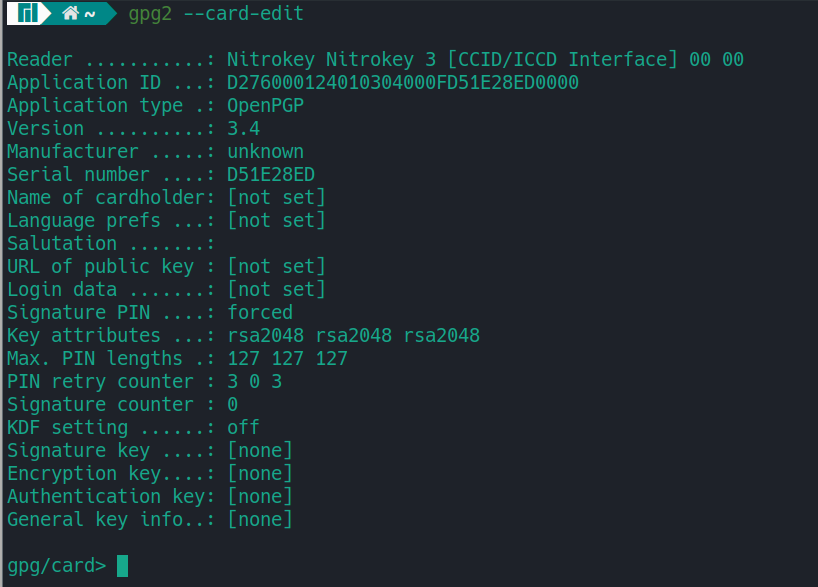
<p>Run <code class="language-plaintext highlighter-rouge">gpg2 --card-status</code> to make sure your NitroKey shows up. If it doesn’t you may need to add the udev rules found in the Troubleshooting section of this post.</p>

<p>Run <code class="language-plaintext highlighter-rouge">gpg2 --card-edit</code> which will put you to the gpg prompt</p>

<p>Enter admin, then enter generate</p>

<p>It will ask you for the Admin PIN (default: 12345678), then ask for the PIN (default: 123456).</p>

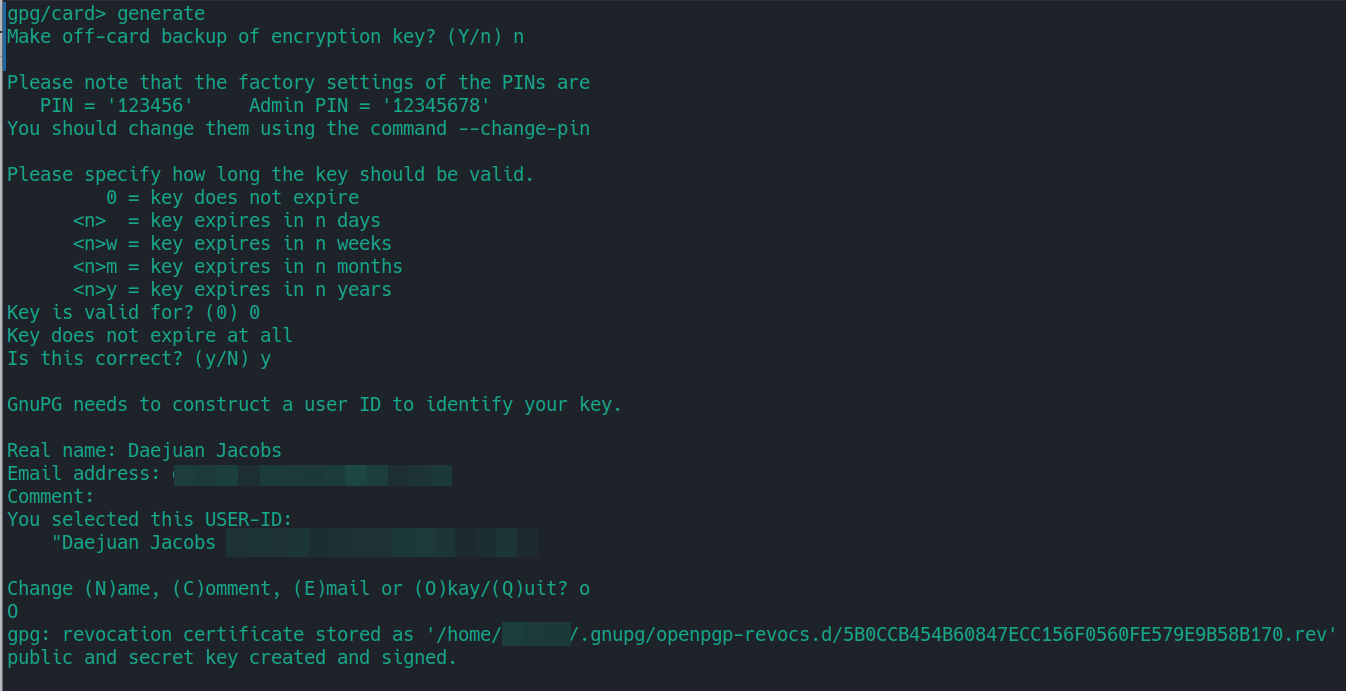
<p>When it asks you to make an off-card backup of the encryption key, note it will only backup the encryption key, and not the whole key set. So the best option is to select No. If you want to make a full backup, <a href="https://docs.nitrokey.com/nitrokey3/linux/openpgp-keygen-backup.html">follow these instructions.</a></p>

<p><img src="/assets/images/nitrokey/Screenshot_20230707_094525.png" alt="Search Prompt" /></p>

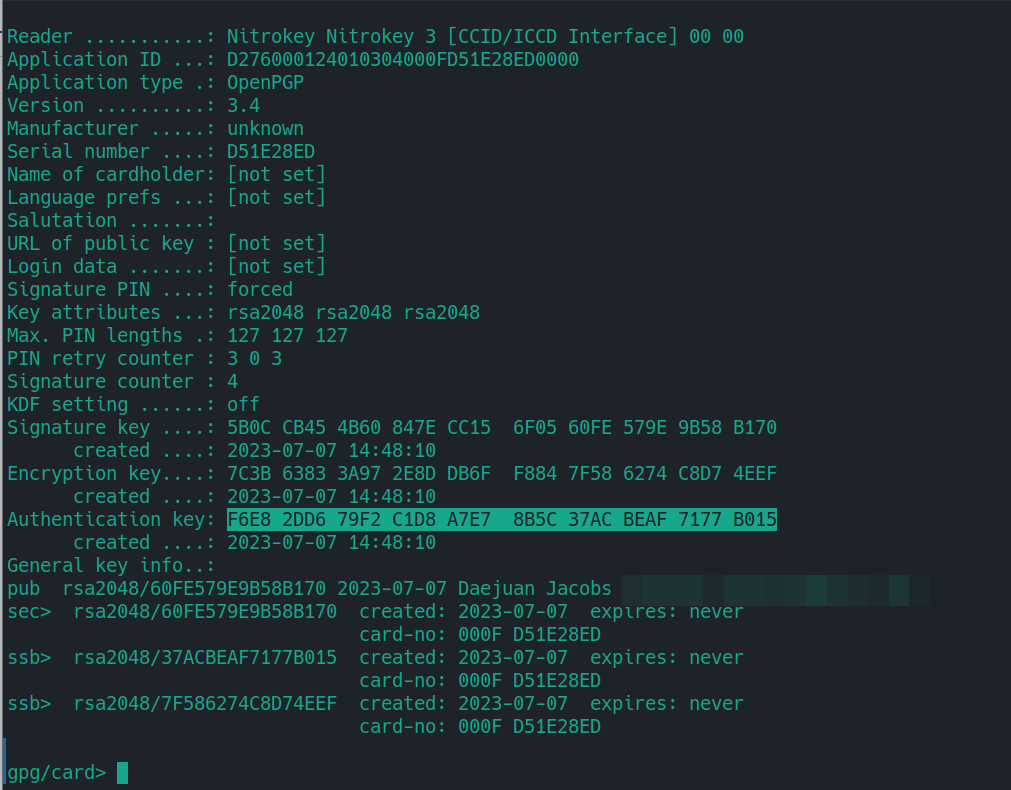
<p>Afterward, it will take some time, but it will generate the whole key set (Signature Key, Encryption Key, Authentication Key)</p>

<p><img src="/assets/images/nitrokey/Screenshot_20230707_095821.png" alt="Search Prompt" /></p>

<p>Note the “Authentication key”, as this is the key that will be used for the Linux server.</p>

<p><img src="/assets/images/nitrokey/Screenshot_20230707_095759.png" alt="Search Prompt" /></p>

<h1 id="copy-authentication-public-key">Copy Authentication Public key</h1>

<p>Export the public key in ssh format. I like to place it in the .ssh folder so I can copy it to servers later.</p>

<div class="language-shell highlighter-rouge"><div class="highlight"><pre class="highlight"><code>gpg2 <span class="nt">--export-ssh-key</span> AUTH_KEY_ID <span class="o">&gt;</span> ~/.ssh/nitrossh.pub
</code></pre></div></div>

<p>You can use ssh-copy-id to send it to the server under the user you want to access.</p>

<div class="language-shell highlighter-rouge"><div class="highlight"><pre class="highlight"><code>ssh-copy-id <span class="nt">-f</span> <span class="nt">-i</span> ~/.ssh/nitrossh.pub <span class="nt">-o</span> <span class="s1">'IdentityFile test123.pem'</span> youruser@example.net
</code></pre></div></div>

<h2 id="alternative">Alternative</h2>
<p>If you need to use a server key not in a keyring, such as the case with AWS EC2 nodes by default, use the <code class="language-plaintext highlighter-rouge">-o</code> flag and set the “IdentityFile” to the key you currently use to login</p>

<div class="language-shell highlighter-rouge"><div class="highlight"><pre class="highlight"><code>ssh-copy-id <span class="nt">-f</span> <span class="nt">-i</span> ~/.ssh/nitrossh.pub <span class="nt">-o</span> <span class="s1">'IdentityFile test123.pem'</span> ec2-user@ec2-34-333-22-11.compute-1.amazonaws.com
</code></pre></div></div>

<h1 id="load-agent">Load Agent</h1>

<p>Next you need to setup the GPG agent to interact with your SSH agent. There are a few configuration files that need to be in play, so I’ve <a href="https://github.com/cloudrck/nitrokey-ssh-gpg/tree/main">created a GitHub repository with them</a>.</p>

<p>Make sure you have an instance of ssh-agent running in your current terminal/shell.</p>

<div class="language-shell highlighter-rouge"><div class="highlight"><pre class="highlight"><code><span class="nb">eval</span> <span class="si">$(</span>ssh-agent<span class="si">)</span>
</code></pre></div></div>

<p>You can source the bash file that sets the gpgagent environment variables and configuration required.</p>

<div class="language-shell highlighter-rouge"><div class="highlight"><pre class="highlight"><code><span class="nb">source </span>nitrokey.sh
</code></pre></div></div>

<h1 id="logging-in">Logging in</h1>

<p>Afterward, you should see the Authentication key stored on the Nitrokey loaded into the SSH agent.</p>

<div class="language-shell highlighter-rouge"><div class="highlight"><pre class="highlight"><code>ssh-add <span class="nt">-L</span>
</code></pre></div></div>

<p>You should see something like the following:</p>

<div class="language-shell highlighter-rouge"><div class="highlight"><pre class="highlight"><code>ssh-rsa LONGKEYHERE cardno:000F D51E28ED
</code></pre></div></div>

<p>You should be able to login to the server</p>

<h1 id="troubleshooting">Troubleshooting</h1>
<h2 id="gpg-agent-cannot-see-card">GPG Agent cannot see card</h2>

<p>If executing <code class="language-plaintext highlighter-rouge">gpg2 --card-edit</code> or <code class="language-plaintext highlighter-rouge">gpg2 --card-status</code> as a non-privileged user gives an error that the card cannot be found or opened. It is likely that the daemon responsible for handling smart cards is not running.</p>

<p>If you are using PC Smart Card Daemon, make sure it’s running.</p>

<div class="language-shell highlighter-rouge"><div class="highlight"><pre class="highlight"><code>systemctl status pcscd.service
</code></pre></div></div>

<p>The <a href="https://wiki.archlinux.org/title/GnuPG#Always_use_pcscd">Arch documentation</a> has good information on this issue</p>]]></content><author><name>Daejuan Jacobs</name></author><category term="security" /><category term="linux" /><category term="ssh" /><category term="nitrokey" /><summary type="html"><![CDATA[The code for this project is located on my Github: nitrokey-ssh-gpg Background If you want a mobile and more secure way to manage your SSH and GPG keys, one route you can take is leveraging hardware keys. The Nitrokey 3C acts as an MFA device, but it also has the ability to store keys commonly used for SSH authentication. One of the main benefits of storing your private keys on a secure hardware device is they’re never loaded into your computer’s RAM. The cryptographic operations are performed on the device’s firmware itself, meaning you’re protected from any malware attacks that could attempt to steal your private keys.]]></summary></entry><entry><title type="html">Deploying Fargate ECS and DynamoDB with CDK</title><link href="https://inblackandwrite.dev/deployment/ecs-dynamodb-cdk/" rel="alternate" type="text/html" title="Deploying Fargate ECS and DynamoDB with CDK" /><published>2022-12-11T00:00:00-06:00</published><updated>2022-12-11T00:00:00-06:00</updated><id>https://inblackandwrite.dev/deployment/ecs-dynamodb-cdk</id><content type="html" xml:base="https://inblackandwrite.dev/deployment/ecs-dynamodb-cdk/"><![CDATA[<p>In a <a href="https://inblackandwrite.dev/deployment/beanstalk-rds-cdk/">previous blog post</a>, I showed how you can use AWS Cloud Development Kit (CDK) to deploy an Elastic Beanstalk application with an RDS backend. In this post, I’m going to switch it up with a more serverless architecture with ECS powered by Fargate, DynamoDB tables, and an Application Load Balancer for good measure.</p>

<h1 id="getting-started">Getting Started</h1>
<p>The following sections will briefly go over code and is meant to be read while viewing the code on the GitHub.</p>

<ul>
  <li>GitHub: <a href="https://github.com/cloudrck/ecs-dynamodb-cdk-sampleapp">ecs-dynamodb-cdk-sampleapp</a></li>
</ul>

<h2 id="apppy">app.py</h2>
<p>Just like the code from the previous, we start with the main point of entry, the <code class="language-plaintext highlighter-rouge">app.py</code> file.</p>

<p>The Props Dictionary holds some of the common values we’ll make use in the code that does the heavy lifting. Something new here is the introduction of <a href="https://docs.aws.amazon.com/cdk/v2/guide/context.html">runtime contexts</a> to pass two account-specific values, noted by the <code class="language-plaintext highlighter-rouge">-c VAR</code> flag.. You could use dotenvs, but I wanted to show more CDK concepts this time.</p>

<h2 id="dynamodbstack">DynamoDBStack</h2>
<p>The DynamoDB is setup first, but the two stacks are not dependent upon each other and can swap places in order.</p>

<p>The <code class="language-plaintext highlighter-rouge">prepare_import_data</code> function highlights one of the main benefits of using CDK over CloudFormation, or even Terraform. This is a custom function I’ve created to handle importing data from CSV files (located in <code class="language-plaintext highlighter-rouge">./data</code>) and bringing it into the DynamoDB tables that will be created later. You can obviously create functions or classes to handle anything you can imagine.</p>

<p>Digging deeper into this function, we’re formatting the data for <a href="https://boto3.amazonaws.com/v1/documentation/api/latest/reference/services/dynamodb.html#DynamoDB.ServiceResource.batch_write_item">PutRequest</a>, a DynamoDB data type that will be used in an API call in this stack.</p>

<p>There are three <a href="https://docs.aws.amazon.com/cdk/api/v2/python/aws_cdk.aws_dynamodb/Table.html">tables</a> being created: “Resource”, “Category”, and “Bookmark”. The Resource table has an added <a href="https://docs.aws.amazon.com/cdk/api/v2/python/aws_cdk.aws_dynamodb/Table.html#aws_cdk.aws_dynamodb.Table.add_global_secondary_index">Global Secondary Index</a>.</p>

<p>A cool feature of CDK is the ability to create <a href="https://docs.aws.amazon.com/cdk/api/v2/python/aws_cdk.custom_resources/AwsCustomResource.html">custom resources</a> which are AWS Lambda-backed functions. This function will load our BatchWriteItem API call to a short-lived Lambda function that will be responsible for actually making the API request to the DynamoDB table. We don’t have to worry about creating and managing a Lambda function.</p>

<p>The <code class="language-plaintext highlighter-rouge">props.copy()</code> is going to copy the props Dictionary we passed to it from <code class="language-plaintext highlighter-rouge">app.py</code> and copy it, combining any additions you might add to it so it can be passed to another stack. In this case, looking at <code class="language-plaintext highlighter-rouge">app.py</code> we pass this to the ECSStack.</p>

<h2 id="ecsstack">ECSStack</h2>
<p>While this stack is the bulk of our infrastructure, ironically it has fewer lines of code than the DynamoDB stack.</p>

<p>The VPC is created, and that’s all we really need to do in terms of our VPC configuration. The Fargate construct will create nearly everything else for us.</p>

<p>The construct for creating the ECS Cluster object is straightforward.</p>

<p>We have to create a <a href="https://docs.aws.amazon.com/AmazonECS/latest/developerguide/task_execution_IAM_role.html">Task Execution Role</a>, so using the Role construct and giving it the correct service principal. This is so the <a href="https://docs.aws.amazon.com/AmazonECR/latest/userguide/security-iam-awsmanpol.html#security-iam-awsmanpol-AmazonEC2ContainerRegistryReadOnly">AmazonEC2ContainerRegistryReadOnly</a> managed role can get attached to it. Allows the task to pull from an ECR registry on launch if needed.</p>

<p>The <code class="language-plaintext highlighter-rouge">ecs_patterns</code> is a high-level construct library, and it will require less code to accomplish what we need. This particular code creates the service which will be underneath the cluster that will be created. This service will have an Application Load Balancer created with the target group being the service and its tasks. The image in this example is an image from Docker Hub, but it can be from any Docker registry, including ECR. There are also example environmental variables set, and <a href="https://docs.aws.amazon.com/AmazonECS/latest/developerguide/task_definition_parameters.html#container_definition_labels">Docker labels</a> for the sake of example.</p>

<p>Since the Fargate construct created the security group, we use the object holding it to modify the ingress rule for the Security Group associated with the ECS Service. The SG for the ECS Service will allow port 8080 from the ELB and the CIDR 10.0.0.0/16. The ELB will use a default rule on port 80 from 0.0.0.0/0.</p>

<p>The <code class="language-plaintext highlighter-rouge">db_stack</code> object was passed from the DynamoDB stack through the main <code class="language-plaintext highlighter-rouge">app.py</code> to this ECSStack so that we can modify the Fargate task role to allow access to the DynamoDB Tables created in the previous stack.</p>

<h1 id="putting-it-all-together">Putting it all together</h1>
<p>The last part simply prints the load balancer DNS to the terminal.</p>

<div class="language-plaintext highlighter-rouge"><div class="highlight"><pre class="highlight"><code>cdk deploy --all -c account_id="111111111111" -c preferred_region="us-east-2"
</code></pre></div></div>
<h2 id="why-contexts">Why Contexts</h2>
<p>The CDK Documentation recommends for production stacks to explicitly <a href="https://docs.aws.amazon.com/cdk/v2/guide/environments.html">specify the environment</a> (Account no. &amp; Region) for each stack in your app using the env property.</p>

<p>Instead of hardcoding the values, I opted to use runtime contexts as mentioned earlier.</p>

<p>Found in <code class="language-plaintext highlighter-rouge">app.py</code>:</p>
<div class="language-python highlighter-rouge"><div class="highlight"><pre class="highlight"><code><span class="n">preferred_region</span> <span class="o">=</span> <span class="n">app</span><span class="p">.</span><span class="n">node</span><span class="p">.</span><span class="n">try_get_context</span><span class="p">(</span><span class="s">"preferred_region"</span><span class="p">)</span>
<span class="n">account_id</span> <span class="o">=</span> <span class="n">app</span><span class="p">.</span><span class="n">node</span><span class="p">.</span><span class="n">try_get_context</span><span class="p">(</span><span class="s">"account_id"</span><span class="p">)</span>
<span class="n">env</span> <span class="o">=</span> <span class="n">core</span><span class="p">.</span><span class="n">Environment</span><span class="p">(</span><span class="n">region</span><span class="o">=</span><span class="n">preferred_region</span><span class="p">,</span> <span class="n">account</span><span class="o">=</span><span class="n">account_id</span><span class="p">)</span>
</code></pre></div></div>
<p>Defined just below:</p>
<div class="language-python highlighter-rouge"><div class="highlight"><pre class="highlight"><code><span class="n">db_stack</span> <span class="o">=</span> <span class="n">DynamoDBStack</span><span class="p">(</span><span class="n">app</span><span class="p">,</span> <span class="sa">f</span><span class="s">"</span><span class="si">{</span><span class="n">props</span><span class="p">[</span><span class="s">'namespace'</span><span class="p">]</span><span class="si">}</span><span class="s">-Dynamo"</span><span class="p">,</span><span class="n">props</span><span class="p">,</span><span class="n">env</span><span class="o">=</span><span class="n">env</span><span class="p">)</span>
<span class="n">ecs_stack</span> <span class="o">=</span> <span class="n">ECSStack</span><span class="p">(</span><span class="n">app</span><span class="p">,</span> <span class="sa">f</span><span class="s">"</span><span class="si">{</span><span class="n">props</span><span class="p">[</span><span class="s">'namespace'</span><span class="p">]</span><span class="si">}</span><span class="s">-ECS"</span><span class="p">,</span><span class="n">db_stack</span><span class="p">.</span><span class="n">output_props</span><span class="p">,</span> <span class="n">db_stack</span><span class="o">=</span><span class="n">db_stack</span><span class="p">,</span> <span class="n">env</span><span class="o">=</span><span class="n">env</span><span class="p">)</span>
</code></pre></div></div>

<h1 id="conclusion">Conclusion</h1>

<p>After this, you will have an ECS Fargate service setup behind an Application Load Balancer. The ALB will be setup as you expected, forwarding traffic on the ports you specified, and performing health checks on the traffic port (8080).</p>

<p>The ECR repository can easily be replaced by a DockerHub registry, or any <a href="https://docs.aws.amazon.com/AmazonECS/latest/developerguide/task_definition_parameters.html#container_definition_image">supported image repository</a>. There’s obviously a lot more you can do here, but I think this is a good start.</p>]]></content><author><name>Daejuan Jacobs</name></author><category term="deployment" /><category term="dynamodb" /><category term="cdk" /><category term="iac" /><category term="fargate" /><category term="ecs" /><summary type="html"><![CDATA[In a previous blog post, I showed how you can use AWS Cloud Development Kit (CDK) to deploy an Elastic Beanstalk application with an RDS backend. In this post, I’m going to switch it up with a more serverless architecture with ECS powered by Fargate, DynamoDB tables, and an Application Load Balancer for good measure.]]></summary></entry><entry><title type="html">Deploying Elastic Beanstalk, RDS with CDK</title><link href="https://inblackandwrite.dev/deployment/beanstalk-rds-cdk/" rel="alternate" type="text/html" title="Deploying Elastic Beanstalk, RDS with CDK" /><published>2022-09-15T00:00:00-05:00</published><updated>2022-09-15T00:00:00-05:00</updated><id>https://inblackandwrite.dev/deployment/beanstalk-rds-cdk</id><content type="html" xml:base="https://inblackandwrite.dev/deployment/beanstalk-rds-cdk/"><![CDATA[<p>The code for this project is located on my Github: <a href="https://github.com/cloudrck/beanstalk-rds-cdk-sampleapp">beanstalk-rds-cdk-sampleapp</a></p>
<h1 id="background">Background</h1>
<p>When developing an application that you want to get deployed to the cloud quickly, one option would be to use Elastic Beanstalk. The Beanstalk platform handles your deployment’s provisioning, load balancing, scaling, and application health monitoring.</p>

<p>There may be other services you’re interested in stacking, such as RDS or an Elastic Load Balancer. Since you’re developing this stack on AWS, and will likely transition away from Beanstalk in the future for production, it would be good practice to get started with the Cloud Development Kit (CDK). This way you will have a good foundation for developing and deploying a wide range of services on AWS.</p>

<h2 id="cloud-development-kit-cdk">Cloud Development Kit (CDK)</h2>
<p>CDK is an open-source software development framework to define your cloud application resources using popular programming languages, such as Python, Go, and Java. You define your architecture in your favorite programming languages, and the CDK engine outputs, or synthesizes your code to Cloudformation templates. You get the best of both worlds.</p>

<p>You get to benefit from the programming language’s expressive nature and functionality, such as objects, loops, and conditions. If your application were written in Python, it would make sense to write your CDK constructs in Python. This way you could integrate Python classes created for your application into your CDK application code to help bootstrap the application for deployment.</p>

<p>You also have the benefit of being able to version control your CDK code, just as you would if writing Cloudformation templates directly.</p>

<h1 id="getting-started">Getting Started</h1>
<p>There are a few <a href="https://docs.aws.amazon.com/cdk/v2/guide/getting_started.html#getting_started_prerequisites">command-line tools and libraries</a> you will need to install on your local system to get up and running. Obviously, you could install these in a Docker container, but that’s out of scope for this article.</p>

<h2 id="prerequisites">Prerequisites</h2>
<ul>
  <li>AWS CLI</li>
  <li>AWS Account configured with <a href="https://stackoverflow.com/a/61102280">appropriate permissions</a> to deploy your services and create CloudFormation stacks</li>
  <li>AWS CDK toolkit</li>
  <li>Python (since this article focuses on CDK w/ Python)</li>
</ul>

<h2 id="initialization">Initialization</h2>
<p>Normally, you will initialize a working directory by: <code class="language-plaintext highlighter-rouge">cdk init sample-app --language python</code> in the directory. As this will generate some scaffolding to help develop your CDK code.</p>

<p>But if you’re using my Github app as a starting point, you can just git pull my repo.</p>

<h3 id="python-setup">Python Setup</h3>
<p>CDK in Python is similar to writing an application in Python, meaning it’s best practice to use something like virtrualenv to manage Python libraries with Pip. Most Python CDK projects should make installing the required CDK libraries and constructs easy with Pip.</p>

<h1 id="code-overview">Code Overview</h1>
<p>For my sample CDK project that deploys Elastic Beanstalk, MySQL RDS, and an Application Load Balancer, we have three main files. In order of execution:</p>
<ol>
  <li>App.py</li>
  <li>NetworkStack.py</li>
  <li>RDSDBStack.py</li>
</ol>

<h2 id="apppy">App.py</h2>
<p>This is the main file that gets executed when you run any of the CDK commands. Therefore, it should import and include all of the CDK constructs, Python libraries, and Stacks to run your code. It’s the file that connects everything together. I’ve also added some variables that will be shared between stacks.</p>

<h2 id="networkstackpy">NetworkStack.py</h2>
<p>This stack takes the tedious, but important task of configuring your VPC, including subnets, route tables, and security groups, and expresses it into easy-to-read code that you can replicate and reuse. Since some of this information will be used in the next stack that’s in a separate file, I made sure to pass references to objects when needed.</p>

<p>For example, for a few subnets, and the VPC itself I pass the reference to a variable to be used with certain Beanstalk construct options that expect them. Until CDK creates the VPC, you won’t know what the VPC ID is, but by passing the reference to the object you won’t need to.</p>

<h2 id="beanstalkrdsstackpy">BeanstalkRDSStack.py</h2>
<p>Starts off with some basic settings for launching the RDS service, along with generating a secure password and storing it in Secrets Manager.</p>

<p>Behind the scenes, when you <a href="https://docs.aws.amazon.com/cdk/v2/guide/bootstrapping.html">bootstrap the CDK app</a> into your region it creates and manages an S3 bucket used for storing files it uses. We can leverage this when uploading our application in a zip file to load into Beanstalk. The code I have expects a <a href="https://docs.aws.amazon.com/elasticbeanstalk/latest/dg/applications-sourcebundle.html">properly structured zip file</a> to be one level up from the main app.py.</p>

<p>Most of this code uses <a href="https://docs.aws.amazon.com/cdk/v2/guide/constructs.html">Level 1 (low-level)</a> CDK constructs, this is because it allows for more flexibility where needed.</p>

<p>As you’ll soon find out, Elastic Beanstalk makes a lot of assumptions about your application environment, which is fine because its job is to quickly deploy your application. But if you’re sitting down to write CDK code for your deployment, you might as well add a few lines to fine-tune it to fit your needs. There is a <a href="https://docs.aws.amazon.com/elasticbeanstalk/latest/dg/command-options-general.html">long list of options</a> you can customize with Beanstalk.</p>

<p>The last few lines are important and depend on the application you want to deploy. So be sure to set the appropriate <a href="https://docs.aws.amazon.com/elasticbeanstalk/latest/dg/concepts.platforms.html">Beanstalk platform</a></p>

<h1 id="considerations">Considerations</h1>
<p>This should set you off to a nice start with your first CDK app. The one thing the code doesn’t handle is making use of the database password stored in Secrets Manager. Beanstalk doesn’t directly support pulling from Secrets Manager at the time of this writing, however, there are a handful of ways to go about it.</p>

<p>One way, though one I wouldn’t recommend for production, is to use <a href="https://docs.aws.amazon.com/elasticbeanstalk/latest/dg/environments-cfg-softwaresettings.html#environments-cfg-softwaresettings-console">environmental variables</a>. However, the cleartext password will appear in console logs. A better way would be to use <a href="https://docs.aws.amazon.com/elasticbeanstalk/latest/dg/ebextensions.html">ebextensions</a>, and use AWS CLI (<a href="https://awscli.amazonaws.com/v2/documentation/api/latest/reference/secretsmanager/get-secret-value.html">get-secret-value</a>). Depending on the actual application you’re deploying, you can use the AWS SDK and pull the secret that way.</p>

<h2 id="continued-learning">Continued Learning</h2>
<ul>
  <li><a href="https://github.com/aws-samples/aws-cdk-examples">AWS CDK Examples</a></li>
</ul>

<h1 id="whats-next">What’s Next</h1>
<p>Elastic Beanstalk is a good way to get your application deployed, but for a more scalable and flexible solution you may want to consider Elastic Container Service. So in my next article I’m going to discuss deploying an ECS/Fargate, DynamoDB stack for your application.</p>]]></content><author><name>Daejuan Jacobs</name></author><category term="deployment" /><category term="rds" /><category term="cdk" /><category term="iac" /><category term="beanstalk" /><summary type="html"><![CDATA[The code for this project is located on my Github: beanstalk-rds-cdk-sampleapp Background When developing an application that you want to get deployed to the cloud quickly, one option would be to use Elastic Beanstalk. The Beanstalk platform handles your deployment’s provisioning, load balancing, scaling, and application health monitoring.]]></summary></entry><entry><title type="html">Easier AWS Profile Management with ZSH</title><link href="https://inblackandwrite.dev/zsh/zsh-aws-profiles/" rel="alternate" type="text/html" title="Easier AWS Profile Management with ZSH" /><published>2022-04-11T00:00:00-05:00</published><updated>2022-04-11T00:00:00-05:00</updated><id>https://inblackandwrite.dev/zsh/zsh-aws-profiles</id><content type="html" xml:base="https://inblackandwrite.dev/zsh/zsh-aws-profiles/"><![CDATA[<h1>Intro</h1>
<p>When dealing with AWS Command Line Interface you&#8217;ll quickly find out you will have to deal with multiple<a href="https://docs.aws.amazon.com/cli/latest/userguide/cli-configure-profiles.html"> AWS Named Profiles</a>. After all, they make sense to use when you have multiple user credentials you have to frequently use, especially when separating permissions between different users. As outlined in the AWS documentation you would specify the profile you want to run the command as by adding <code>--profile myprof</code> option on a command. If you don&#8217;t set this flag the command looks for the environmental variable <code>AWS_PROFILE=myprof</code>. If neither of these is set, then the default profile is used.</p>
<p>However, neither of these options really leverage the benefits you gain from using the command line. These options require you to remember to add the <code>--profile</code> option to each command, or remember which environmental variable you set when executing commands.</p>
<h2>Z Shell (ZSH)</h2>
<p>A while ago I discussed <a href="https://inblackandwrite.dev/linux/the-trifecta-for-linux-cli/">why you should switch to ZSH</a>, and in this article, I&#8217;m going to give some tangible use-cases to support that statement. Working at the shell can and should be a more streamlined experience than dealing with GUI&#8217;s or web consoles. Using AWS web console may be an easier experience to get up and running, but once you start having to complete redundant tasks it becomes obvious that having to browse the web interface can be slow when configuring services.</p>
<p>The CLI allows a much faster workflow and the ability to reuse code to cut down on redundant tasks. You also get access to certain configuration and troubleshooting options and not available in the Web Console</p>
<h1>ZSH AWS plugin</h1>
<p>There&#8217;s a much better way and it involves ZSH and the <a href="https://github.com/ohmyzsh/ohmyzsh/tree/master/plugins/aws">AWS plugin</a>. You simply set your local <code>$HOME/.aws/</code> profiles as you normally would. But instead of messing with environmental variables directly or adding the <code>--profile</code> option to each command, you use the functions added with the plugin.</p>
<h2>Plugin Installation</h2>
<p>The ZSH AWS plugin includes the AWS Switch Profile (asp) function that we will use later. If you use Oh My ZSH, you can add the following to your <code>.zshrc</code> or <code>.zshrc.local</code>:</p>
<div class="highlight"><pre><span></span><span class="nv">plugins</span> <span class="o">=</span> <span class="o">(</span> ... aws ... <span class="o">)</span>
</pre></div>
<h2>Usage</h2>
<p><img src="/assets/images/aws-profile1.png" alt="/assets/images/aws-profile1.png" /></p>
<p>This function <code>asp</code> ran as a command switch to the specified AWS profile (as it exists in your <code>$HOME/.aws/config</code> file. Depending on your ZSH theme, the active profile will either be displayed at all times in your prompt or as in my case, it will be displayed in the corner when you type <code>aws</code> on the command line.</p>
<p><img src="/assets/gifs/aws-profile2.gif" alt="/assets/gifs/aws-profile2.gif" />
  This plugin provides two important features that will make your workflow at the command line much easier.</p>

<ol>
  <li>Quick and easy profile switching</li>
  <li>Clear &amp; concise visual feedback on the active profile</li>
</ol>
<h2>Customizations</h2>
<p>My setup uses <a href="https://github.com/romkatv/powerlevel10k">Powerlevel10k</a>, the default Manjaro Linux ZSH theme. Out of the box, it only shows the active AWS profile when you finish typing <code>aws</code> on the command line. Of course, if you want to always display the active profile you can do so.</p>
<p>There&#8217;s a line of code in the <code>p10k.zsh</code> configuration file that you can comment out to always show the active profile, non-default profile.</p>
<p><img src="/assets/images/p10k-aws.png" alt="/assets/images/p10k-aws.png" /></p>
<p>Another popular ZSH theme is <a href="https://github.com/agnoster/agnoster-zsh-theme">Agnoster</a> where the default behavior is to always show the aws profile if it&#8217;s non-default.</p>
<h1>Notes</h1>
<p>The <a href="https://docs.aws.amazon.com/cli/latest/userguide/cli-configure-completion.html">AWS CLI command-line completion</a> gives you the ability to view CLI options when typing commands. Depending on your system and how you installed the AWS CLI, it may or may not be configured.</p>
<p>ZSH and this plugin should certainly work on OS X, though I have not looked into it much since I haven&#8217;t owned a Mac in years.</p>
<p>You can spice up your AWS CLI use with <a href="https://github.com/junegunn/fzf">a command-line fuzz finder</a>.</p>]]></content><author><name>Daejuan Jacobs</name></author><category term="zsh" /><category term="linux" /><category term="zsh" /><category term="aws" /><summary type="html"><![CDATA[Intro When dealing with AWS Command Line Interface you&#8217;ll quickly find out you will have to deal with multiple AWS Named Profiles. After all, they make sense to use when you have multiple user credentials you have to frequently use, especially when separating permissions between different users. As outlined in the AWS documentation you would specify the profile you want to run the command as by adding --profile myprof option on a command. If you don&#8217;t set this flag the command looks for the environmental variable AWS_PROFILE=myprof. If neither of these is set, then the default profile is used. However, neither of these options really leverage the benefits you gain from using the command line. These options require you to remember to add the --profile option to each command, or remember which environmental variable you set when executing commands. Z Shell (ZSH) A while ago I discussed why you should switch to ZSH, and in this article, I&#8217;m going to give some tangible use-cases to support that statement. Working at the shell can and should be a more streamlined experience than dealing with GUI&#8217;s or web consoles. Using AWS web console may be an easier experience to get up and running, but once you start having to complete redundant tasks it becomes obvious that having to browse the web interface can be slow when configuring services. The CLI allows a much faster workflow and the ability to reuse code to cut down on redundant tasks. You also get access to certain configuration and troubleshooting options and not available in the Web Console ZSH AWS plugin There&#8217;s a much better way and it involves ZSH and the AWS plugin. You simply set your local $HOME/.aws/ profiles as you normally would. But instead of messing with environmental variables directly or adding the --profile option to each command, you use the functions added with the plugin. Plugin Installation The ZSH AWS plugin includes the AWS Switch Profile (asp) function that we will use later. If you use Oh My ZSH, you can add the following to your .zshrc or .zshrc.local: plugins = ( ... aws ... ) Usage This function asp ran as a command switch to the specified AWS profile (as it exists in your $HOME/.aws/config file. Depending on your ZSH theme, the active profile will either be displayed at all times in your prompt or as in my case, it will be displayed in the corner when you type aws on the command line. This plugin provides two important features that will make your workflow at the command line much easier. Quick and easy profile switching Clear &amp; concise visual feedback on the active profile Customizations My setup uses Powerlevel10k, the default Manjaro Linux ZSH theme. Out of the box, it only shows the active AWS profile when you finish typing aws on the command line. Of course, if you want to always display the active profile you can do so. There&#8217;s a line of code in the p10k.zsh configuration file that you can comment out to always show the active profile, non-default profile. Another popular ZSH theme is Agnoster where the default behavior is to always show the aws profile if it&#8217;s non-default. Notes The AWS CLI command-line completion gives you the ability to view CLI options when typing commands. Depending on your system and how you installed the AWS CLI, it may or may not be configured. ZSH and this plugin should certainly work on OS X, though I have not looked into it much since I haven&#8217;t owned a Mac in years. You can spice up your AWS CLI use with a command-line fuzz finder.]]></summary></entry><entry><title type="html">Dotfile Management with Yadm</title><link href="https://inblackandwrite.dev/dotfiles/dotfile-management-yadm/" rel="alternate" type="text/html" title="Dotfile Management with Yadm" /><published>2022-03-04T00:00:00-06:00</published><updated>2022-03-04T00:00:00-06:00</updated><id>https://inblackandwrite.dev/dotfiles/dotfile-management-yadm</id><content type="html" xml:base="https://inblackandwrite.dev/dotfiles/dotfile-management-yadm/"><![CDATA[<h1>Intro</h1>
<p>One of the major benefits of Unix-like desktop systems is the ability to configure and fine-tune your desktop environment. The majority of these files are <i>dotfiles</i>, because traditionally they either reside in a folder that starts with a dot, e.g <code>.ssh</code>, or the file itself <code>.zshrc</code>. Obviously, this isn&#8217;t always the case, what&#8217;s important is that these are files and directories that contain configuration variables, functions, and settings.</p>
<p>Some of the dotfiles on my system include:</p>
<ul>
  <li>.zshrc</li>
  <li>.ssh/ <i>directory is encrypted, more on that later</i></li>
  <li>.aws/</li>
  <li>.gitconfig</li>
  <li>.spacemacs</li>
  <li>.aliases</li>
</ul>
<p>This is considered a small list, but it handles the core of my desktop environment&#8217;s configuration. What becomes a hassle is when you run multiple desktops and include laptops in your arsenal.</p>
<ol>
  <li>Does anyone really want to manage separate dotfiles for each desktop environment when most, if not all of the files are exactly the same?</li>
  <li>What if we need to revert previous changes?</li>
</ol>
<p>The answer to these questions is why we&#8217;re here.</p>
<h1>Enter yadm</h1>
<p><a href="https://yadm.io/docs/overview">Yadm (Yet Another Dotfiles Manager)</a>, solves the problems that we mentioned above. It&#8217;s a wrapper for Git, includes encryption support, and it&#8217;s extremely portable and lightweight since it&#8217;s just a Bash script. Git revision control allows you to create a centralized repository for you to push and pull configuration files where you get all the benefits of a typical git repository.</p>
<h2>Installing Yadm</h2>
<p>Installing Yadm is easy, most Linux distributions have yadm in their official repositories. There is also a homebrew package for OS X. At the time of this writing Fedora 35 is the latest stable release but does not have yadm in its official repo, however you can grab the latest Fedora Rawhide RPM package from <a href="https://software.opensuse.org//download.html?project=home%3ATheLocehiliosan%3Ayadm&amp;package=yadm">OpenSuse Build System</a>.</p>
<p>Check the <a href="https://yadm.io/docs/install">full installation list here.</a></p>
<h1>Getting Started</h1>
<p>Outside of installing yadm and git on your local systems, you will probably want to set up your own private Git server. You could obviously use a private git repo from GitHub, Bitbucket, GitLab, or any one of the other Git services instead of managing your own server. If you elect not to manage sensitive configuration files, you could also just use a public Git repo.</p>
<p>I wouldn&#8217;t recommend using any Git service to store your configuration files. In my opinion, when dealing with a set of files that at one point in the future may contain sensitive files or credentials you won&#8217;t want to risk pushing them to a public Git repository. In my opinion, when taking control and adding more privacy to your digital life you should try to avoid services, and instead choose to store your dotfiles on your own private remote server. Luckily, there really isn&#8217;t much to install or manage to host your Yadm repo.</p>
<h2>Setup Git Bare Repo</h2>
<p>There really is no server to install, you simply install Git (if not installed already) and initialize your repo. Git isn&#8217;t a daemon so once you have the CLI tool installed, you either execute it on the server where it manages the git repo directories or run the CLI on your local computer to manage the Git working directories.</p>
<p>On your remote node that will act as the centralized host you want to add a dedicated Git user.</p>
<div class="highlight"><pre><span></span>adduser git -m
</pre></div>
<p>You want to make sure this user has a home directory, as this will be where the Git repositories reside. You can store the repositories in any directory, but since this user will already own the home directory, we won&#8217;t need to set any permissions.</p>
<p>Next, you switch to the newly created <i>git</i> user, and initialize the bare repo in your home directory.</p>
<div class="highlight"><pre><span></span><span class="o">[</span>git@mygithost ~<span class="o">]</span>$ git init --bare dotfiles.git
</pre></div>
<p>You should see a directory named <code>dotfiles.git</code>. Conventionally, repositories initialized with the &#8211;bare flag ends in .git.</p>
<h3>Why Bare Repo?</h3>
<p>So why do we create a &#8220;bare&#8221; repo instead of a regular repo? If you&#8217;re familiar with using a Git service like GitHub you can create a Git repo through github.com before or after you <code>git init</code> your local project so you can push it to the remote git repo.</p>
<p>When you run <a href="https://git-scm.com/docs/git-init">git init</a>, it creates a WORKING directory. It&#8217;s intended to be used as a directory where your file changes will take place. So this makes sense to run on your local dev machine. However, for the remote server that exists to store your repo and no person or service will be making changes to the files there is no need to take up file-space storing a working directory.</p>
<h2>Setup connection</h2>
<p>You&#8217;d want to use ssh keys to log in to the remote git server as the git user. The way to do this varies depending on the VPS or cloud service provider you use. Some general-purpose guides:</p>
<ul>
  <li><a href="https://www.simplified.guide/ssh/create-key">How to generate SSH key pairs</a></li>
  <li><a href="https://www.simplified.guide/ssh/copy-public-key">How to add SSH public key to server</a></li>
</ul>
<p>The goal is to be able to <code>git remote add origin mygithost:dotfiles.git</code> and push/pull without being bothered with passwords. Again, you have multiple options, one such is to use <a href="https://linux.die.net/man/5/ssh_config">ssh_config</a></p>
<div class="highlight"><pre><span></span>Host mygithost 
	HostName 2.34.33.4 
	User admin 
	Port 22 
	IdentityFile ~/.ssh/mygitkey.pem
  
</pre></div>
<h2>Setup Yadm</h2>
<p>As mentioned Yadm is largely a wrapper for Git. So most of the commands are the same, just prepended with <code>yadm</code>. So to initialize the working directory of yadm, you would execute:</p>
<div class="highlight"><pre><span></span><span class="o">[</span>localuser@dev-computer ~<span class="o">]</span>$ yadm init
</pre></div>
<p>Notice that we want to initialize our home directory because this is the root of all our config files. After that, you add the files and directories you want to version control.</p>
<p>For example:</p>
<div class="highlight"><pre><span></span>yadm add .spacemacs
yadm add .aws
yadm add myReadMe.org <span class="c1"># I like to keep a file of config specific notes</span>
</pre></div>
<p>After you&#8217;ve added the files you want to manage, you commit and push similarly to using pure Git.</p>
<div class="highlight"><pre><span></span>yadm commit -m <span class="s2">&quot;added files&quot;</span>
yadm push -u origin master
</pre></div>
<h3>Encrypted Files</h3>
<p>Some configuration files are sensitive, they either contain credentials or are themselves private keys. Yadm is nice enough to offer a simple way to manage encrypted files without much manual work. You simply need to have either OpenSSL or GPG installed, and edit the yadm text file located in your local <code>.config/</code> directory.</p>
<p>Edit a file at <code>$HOME/.config/yadm/encrypt</code> (create if it doesn&#8217;t exist) to include the files and/or directories you want to encrypt. My file consists of:</p>
<pre class="example">
.ssh/*
.aws/credentials
</pre>
<p>I have every file inside my <code>.ssh/</code> directory encrypted, and the one <code>.aws/credentials</code> file with sensitive credentials added. After the file is saved you tell Yadm you files to encrypt, then you add the file you just created along with the generated encrypted archive to versioning.</p>
<div class="highlight"><pre><span></span>yadm encrypt
&lt;ENTER PASSWORD&gt;
yadm add .config/yadm/encrypt
yadm add .local/share/yadm/archive
</pre></div>
<p>Now we can commit and push this to our remote repo. And on another system that we want to sync our config files with you run <code>yadm pull</code> &amp; <code>yadm decrypt</code>.</p>
<h1>Wrapping Up</h1>
<p>We now have a system that accomplishes our two main goals. Our important configuration files now have versioning, and we only need to maintain a central repository of configuration files. We only need to maintain one set of configuration files, but what if we have different systems? Say my desktop runs Linux, but I have a MacBook running OS X which requires slight configuration differences. One way is to make use of <a href="https://yadm.io/docs/alternates#">Alternate Files - yadm</a>. This way we can specify different files depending on specific conditions.</p>
<p>Yadm also supports bootstrapping, the ability to create and run scripts to do any extra configuring in addition to the files you&#8217;re syncing. As an ideal use case for my setup you can imagine the extra libraries and software I have installed to work with Spacemacs. Such as the <code>yaml-language-server</code> which I installed using NPM, and certain Python libraries like flycheck. All of which I would rather not have to install manually on each new system. You can create an executable script that gets ran when you execute <code>yadm bootstrap</code> to install and configure any extra software.</p>]]></content><author><name>Daejuan Jacobs</name></author><category term="dotfiles" /><category term="linux" /><category term="git" /><summary type="html"><![CDATA["Getting Started with Dotfile Management with Yadm CLI"]]></summary></entry></feed>